

Best practices on DX Cloud
We have gathered a number of best practices for developing and running your Magnolia project on DX Cloud. We hope they will help you avoid common pitfalls and gotchas and get the most out of your project.
The General tips section provides you with some straight-forward things to do for a successful project, whereas Best practice topics takes you to subpages that focus in-depth on a particular best practice topic.
General tips
Server versions
Limiting the number of versions under config/server is essential for maintaining optimal performance and managing resource usage.
Excessive versions can bloat the repository, slowing down operations and increasing query times.
They also consume significant disk space, making backups larger and slower to restore in disaster recovery scenarios.
Managing a large number of obsolete versions adds operational complexity with little practical benefit. Setting a reasonable version limit ensures the system remains efficient, while older versions can be archived externally if needed.
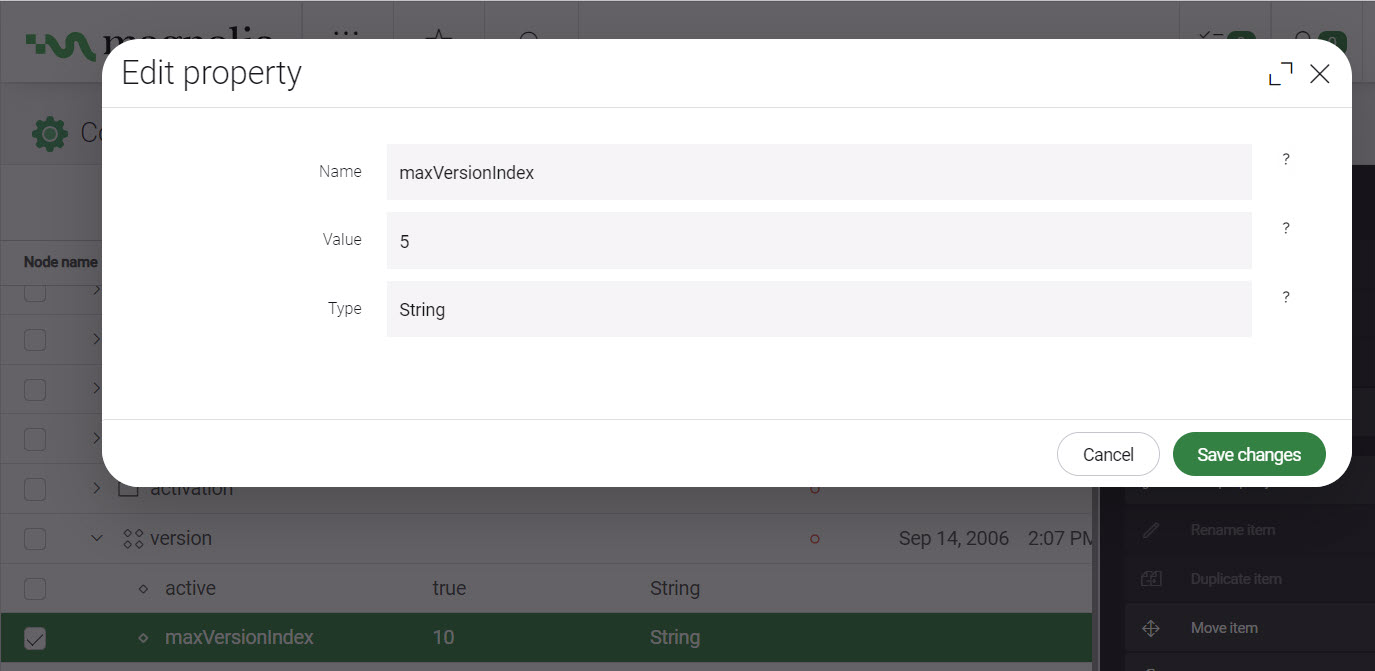
In this case, you should have a maximum of 5.
To set this:
- Go to Admincentral.
- Navigate to
config/server/version. - Click maxVersionIndex.
- Click Edit property in the Action bar.
- In the dialog, set Value to a maximum of
5.
Cache
You can technically use the default Magnolia cache settings. However, this is unlikely to be sufficient for performance reasons unless you have a basic setup.
In order to optimize performance, create cache rules for images, REST, and other applicable items in the Cockpit. See Cache rules in the Cockpit for how to create both browser and CDN cache rules.
If you’re using Magnolia’s personalization features (traits and variants), CDN caching requires special configuration to ensure different user segments see the correct personalized content. See Personalizing content with CDN caching for more information.
Initialization times for larger applications
When migrating to DX Cloud or deploying applications with extensive storage requirements, indexing may take a significant amount of time.
To prevent premature container restarts during these operations, it is essential to configure a startupProbe in the values.yml file with appropriate thresholds.
This ensures Kubernetes allows sufficient time for your application to initialize fully before marking it as unhealthy.
The following configuration provides guidance on adapting startupProbe settings to accommodate lengthy startup times effectively.
This applies to both magnoliaAuthor and magnoliaPublic.
For more on this topic, see Helm values reference.
  startupProbe:
    enabled: True
    failureThreshold: 720 <1>
    periodSeconds: 10 <2>
Increase failureThreshold (number of attempts before failing) to accommodate indexing time for large storage or migrating customers in order to avoid indexing failures.
periodSeconds defines the interval (in seconds) between each probe check.
In this example, the probe is checked every 10 seconds 720 times, meaning 2 hours (7200 seconds) before the application officially fails.
Kubernetes naming conventions
For Kubernetes naming, including when adding a certificate in the Cockpit, you must adhere to the following naming standard.
"^[a-z0-9]([-a-z0-9]*[a-z0-9])?(\\.[a-z0-9]([-a-z0-9]*[a-z0-9])?)*$"Rules
- Must start and end with a lowercase letter or digit. (no trailing hyphens)
- Can contain lowercase letters, digits, and hyphens (-).
- Can have multiple segments separated by dots (.), each following the same rules.
- Case sensitivity: only lowercase letters are allowed.
Valid names
Here are examples of valid names, breaking down why they’re valid.
pod123- Starts with
p(letter), followed byod123(letters and digits), ends with 3 (digit).
- Starts with
a- Single character,
alowercase letter—minimal valid case.
- Single character,
my-pod-1- Starts with
m(letter), contains hyphen-, ends with1(digit).
- Starts with
app.v1.prod- Multiple segments (
app,v1,prod) separated by dots, all lowercase, no hyphens here but allowed.
- Multiple segments (
x-y-z.a-b-c- Two segments (
x-y-zanda-b-c), both follow the rules: start/end with letter/digit, hyphens in between.
- Two segments (
Invalid names
Here are examples of invalid names, breaking down why they’re invalid.
Pod123- Starts with uppercase
P(not allowed, onlya-z).
- Starts with uppercase
my--pod- Contains double hyphen
--(allowed by the pattern); however, Kubernetes might have additional rules disallowing this.
- Contains double hyphen
my-pod-- Ends with a hyphen (not allowed, must end with
a-z0-9).
- Ends with a hyphen (not allowed, must end with
.app- Starts with a dot (not allowed, must start with
a-z0-9).
- Starts with a dot (not allowed, must start with
app..v1- Contains consecutive dots (not allowed, each segment must start with
a-z0-9).
- Contains consecutive dots (not allowed, each segment must start with
Optimizing AdminCentral
Tasks that have been successfully executed are marked as “resolved” and retained in the task workspace in your JCR repository. Resolved tasks can be marked as “archived” and will no longer be displayed in the Tasks app. “Archived” tasks can be marked as “removed”.
Scheduling task cleanups help keep AdminCentral performing at an optimal level.
You can do this by writing a command or using the Tasks Cleaner module.
For Delivery API and REST best practices, see the Delivery API documentation.