

Fastly Image Optimizer
DX Cloud uses Fastly’s Image Optimizer (IO) to optimize assets.
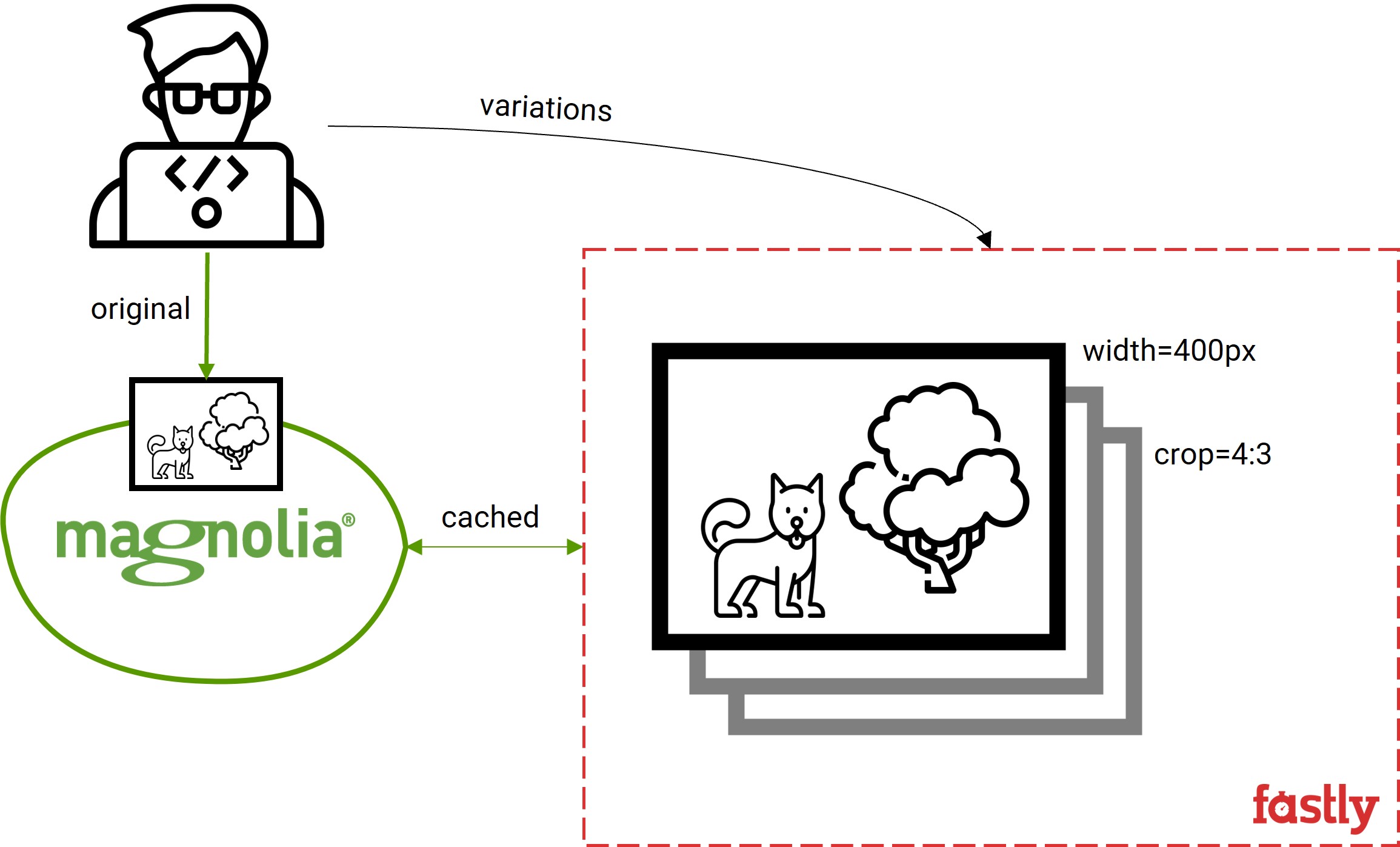
Fastly’s Image Optimizer (IO) works with images and caches optimized versions of those images. It interacts with the fetch node (the server responsible for fetching the object from origin and storing it) in the shield Point of Presence (POP) (multiple clustered machines as a single pool of cache storage). Since images and variations of images are handled within Fastly instead of within Magnolia itself, it helps minimize any lag or heavy lifting from the Magnolia side of things.
If you want to know more, check out Fastly’s dedicated IO documentation.
Implement Fastly IO
Prerequisites
- You must have the DAM JCR Fastly renderer module in your DX Cloud bundle.
- You should be familiar with the DAM API.
- You should have a general understanding of asset renditions and media types.
Configuration
Renditions are configured in the config.yaml file of the module. You can decorate it using a custom light module or use the Resources App to add more renditions. The renderer generates a link to the dam servlet adding in the query string parameters configured for the rendition.
config.yaml
renditions:
  width-960: width=960&crop=16:9,smart <1>
  thumbnail: crop:1:1,smart&width=64 <2>
The link generated for the width-960 rendition would be /dam/jcr:78399215-aed5-4518-9cfc-9b39855f4740/ash-edmonds-441220-unsplash.jpg?width=960&crop=16:9,smart.
The link generated for the thumbnail rendition would be /dam/jcr:78399215-aed5-4518-9cfc-9b39855f4740/ash-edmonds-441220-unsplash.jpg?crop:1:1,smart&width=64.
Dynamic renditions
The module supports dynamic renditions that do not need to be predefined. So if you try to obtain the following rendition 400x200, it will generate a link using the parameters width=400&height=200.
The following related parameters can be configured too:
enableDynamicRenditions: true <1>
extraDynamicRendition: crop:1:1,smart <2>
Setting enableDynamicRenditions to false will disable dynamic renditions.
In extraDynamicRendition, you can include any parameter that will be always used for generating dynamic renditions. For instance, having the above configuration, the rendition 400x200 will generate this link: width=400&height=200&crop:1:1,smart.
Ignore imaging
By default, if you try to use an undefined rendition, the renderer tries to use a rendition from Magnolia. If you want to always use the original image (from Magnolia) in these cases, you can configure the ignoreImagingRenderer property to true.
ignoreImagingRenderer: trueDisable for author
By default, this module is disabled in the author server. If you want to enable it in the author server, you can set this property:
disableForAuthor: false <1>If left undefined or set to true, the module will remain disabled for the author server.
Safe Crop
By default values for the crop area are respected; it could be that they fall out of the rendering area and the image is not rendered. To work around that and get the image rendered, there is a flag safeCrop that can be set to true so the image is rendered although the area might not be what was defined.
safeCrop: trueFastly IO parameters reference
Fastly IO allows you to apply variations to your images through query parameters. Within DX Cloud, you can configure these variations directly in the config.yaml file as shown in the Configuration section.
We won’t put an exhaustive list here as you can reference those directly through Fastly’s query parameters reference documentation. However, to give you an idea, here are a few common query parameters used to make variations to images.
| Parameter | Description | Example |
|---|---|---|
blur | Applies a blur filter to the image. For more, see Fastly blur. | ?blur=50 |
crop | Crops the image to the desired parameters. For more, see Fastly crop. | ?crop=16:9 |
optimize | Applies optimal quality compression. For more, see Fastly optimize. | ?optimize=medium |
width | Applies the desired width of the output image. For more, see Fastly width. | ?width=200 |