

Manage groups
You can create and view groups for your DX Cloud subscription directly from the Cockpit under the Admin section.
-
Go to Admin > Groups.
-
Go to your desired group category.
This includes:
- Cockpit groups (view only)
- Rancher groups (view only)
- Magnolia (AdminCentral) groups (create, edit, delete)
- Custom groups (create, edit, delete)
-
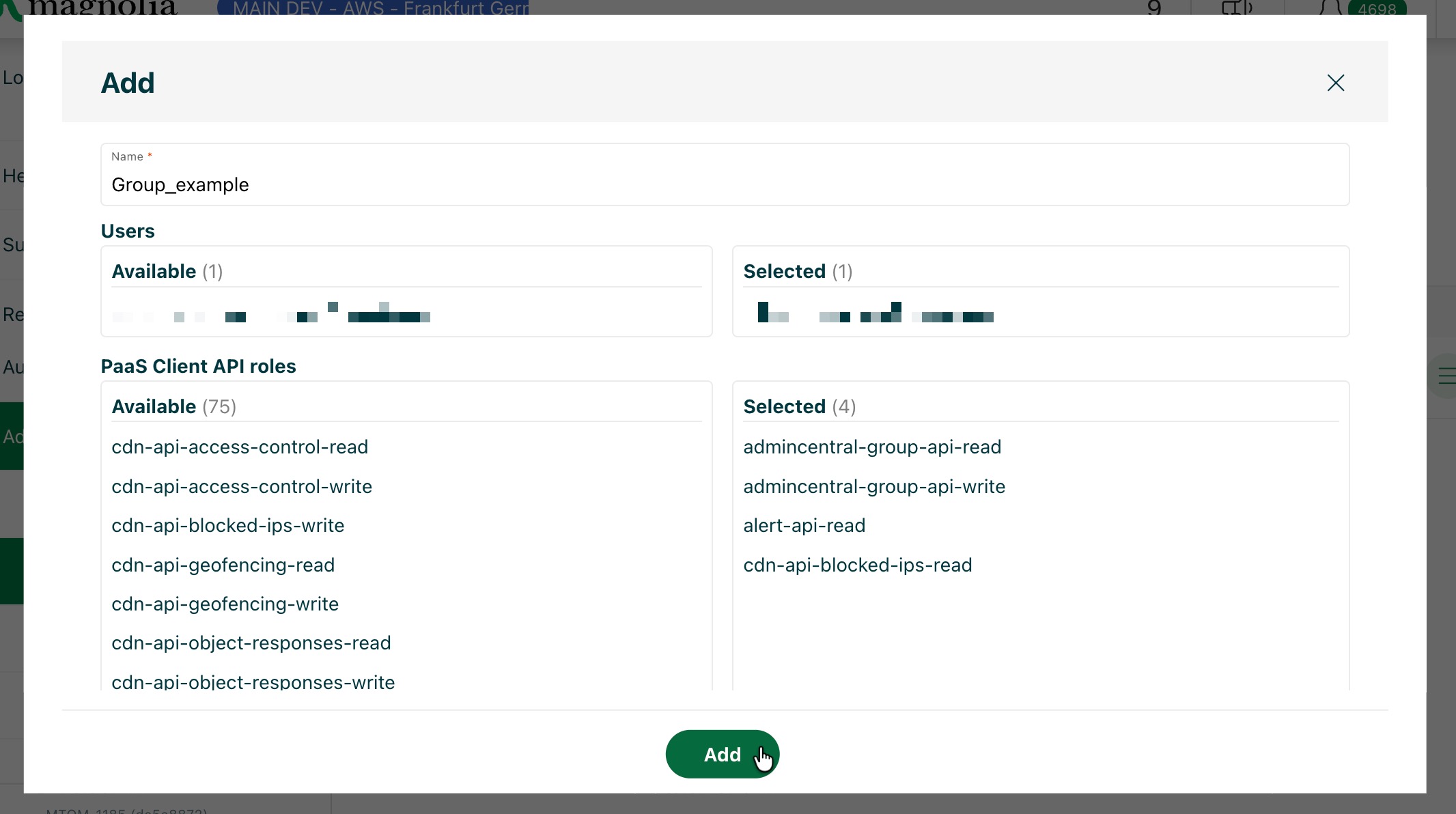
For Magnolia (AdminCentral) and Custom groups, click Add.
-
Give the group a meaningful name.
-
Click the users that you want to add to the group.
-
Click the PaaS Client API roles that you want to add to the group.
-
Click the Rancher roles that you want to add to the group.
-
Click Add to save the group.
Group access AdminCentral
If using the Magnolia SSO module for authentication, you need to ensure the groups created in the Cockpit are granted access via the configuration in the SSO module.
-
Create a group in the Cockpit (see Manage groups above).
-
Assign users to the group. These are the users who you want to be able to access AdminCentral.
-
In the SSO module, ensure the group name created in the Cockpit is defined in the
config.yamlfile. See the SSO module configuration section for more details.
path: /.magnolia/admincentral
callbackUrl: http://localhost:8080/.auth
postLogoutRedirectUri: http://localhost:8080/.magnolia/admincentral
authorizationGenerators:
  - name: groupsAuthorization
    groups:
      targetProperty: groups
      mappings:
        - name: /COCKPIT_GROUP <1>
          targetGroups: <2>
            - editors
          targetRoles: <3>
            - editor
Where /COCKPIT_GROUP is the name of the group you created in the Cockpit.
If using Keycloak, the leading / is mandatory.
Defines the target group for the mapped group.
Defines any particular target roles for the group.