

Block IPs
If you spot a malicious IP or need to block IPs for whatever reason, you can block them directly from the Cockpit.
If blocking multiple IPs, there is a maximum of 1000 entries.
You can add IPs individually or in a batch by uploading a .csv file.
The table shows when an IP was added and by whom.
| CIDR | Comment | Status | Created | Updated | |
|---|---|---|---|---|---|
| Example | 192.168.0.0/24 | Blocking suspicious IPs | Synced | 7/11/2026, 10:15 AM user@example.com | 7/11/2026, 10:15 AM user@example.com |
Column descriptions:
- CIDR: the IP or range to block (Classless Inter-Domain Routing).
- Comment: reason for blocking the IP(s).
- Status:
Created,Modified,Deleted, orSynced. - Created: when the IP(s) were added.
- Updated: when the IP(s) were last updated (for example, after an edit in the Cockpit).
You can edit and remove blocked IPs, and download IPs as a .csv file.
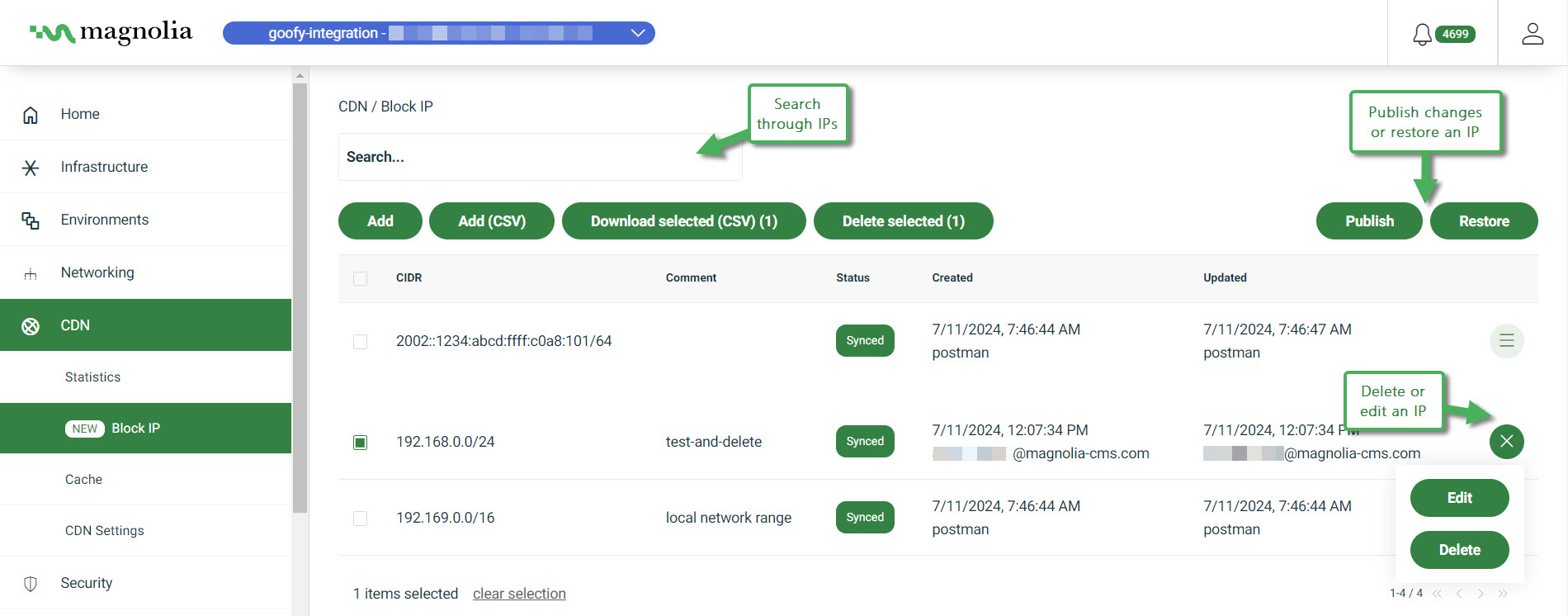
Select desired cluster
Select your desired cluster from the dropdown menu at the top of the Cockpit.

Instructions
- Go to CDN > Block IP.
- Choose to block a single IP or import a list:
Block IP
-
Click Add IP.
-
Enter the CIDR.
The appropriate bit prefix (
/32for IPv4 or/128for IPv6) is appended automatically. -
Add a comment.
-
Click Block IP.
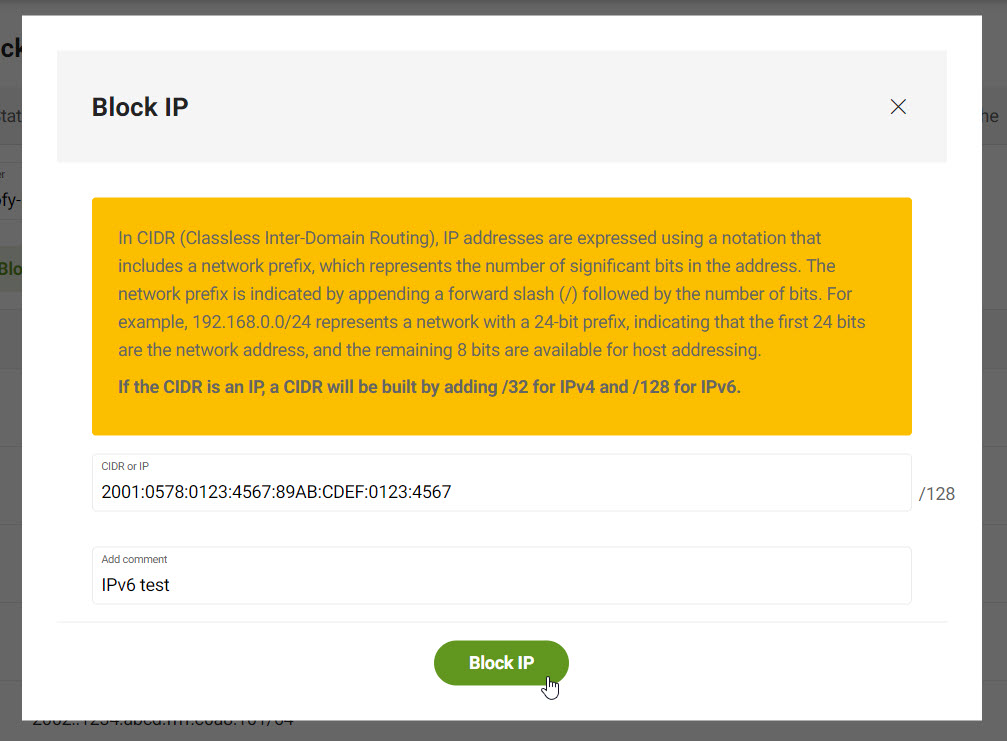
Block multiple IPs
- Click Add IP (CSV).
- Select the file you wish to upload.
- Click Add IP (CSV).
See the CSV format below.
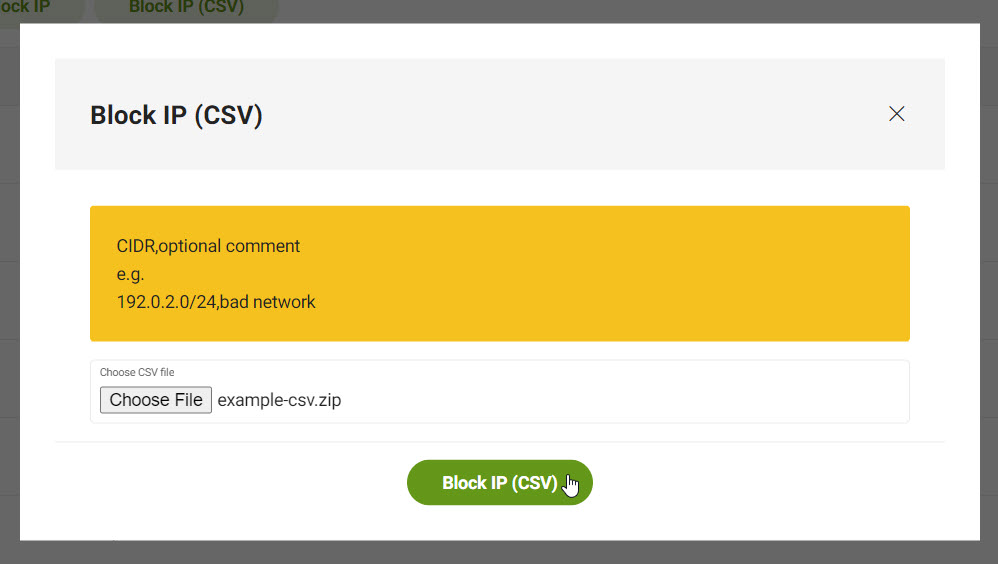
CSV entry format: CIDR,Comment
Example CSV file:
192.169.0.0/16,local network range
23.45.67.111/32,
2002::1234:abcd:ffff:c0a8:101/64
192.169.0.1/12,"commas, in, a, comment, example"
Comments are optional. If your comment contains commas, wrap it in double quotes.
Remove a blocked IP (unblock)
-
Go to CDN > Block IP.
-
Choose one of the currently blocked IPs and click Delete selected.
Alternatively, click Delete all to delete all listed IPs.
Download IPs
-
Go to CDN > Block IP.
-
Choose one of the currently blocked IPs and click Download selected.
Alternatively, click Download all.
-
The download is a
.csvfile with:idcidraction(typicallyblock)comment