

CDN request logs
DX Cloud stores CDN request cache logs. The default setup stores customer IPs for a configurable amount of time. If you do not want customer IPs included in the logs, that can also be configured.
Select desired cluster
Select your desired cluster from the dropdown menu at the top of the Cockpit.

View CDN request logs
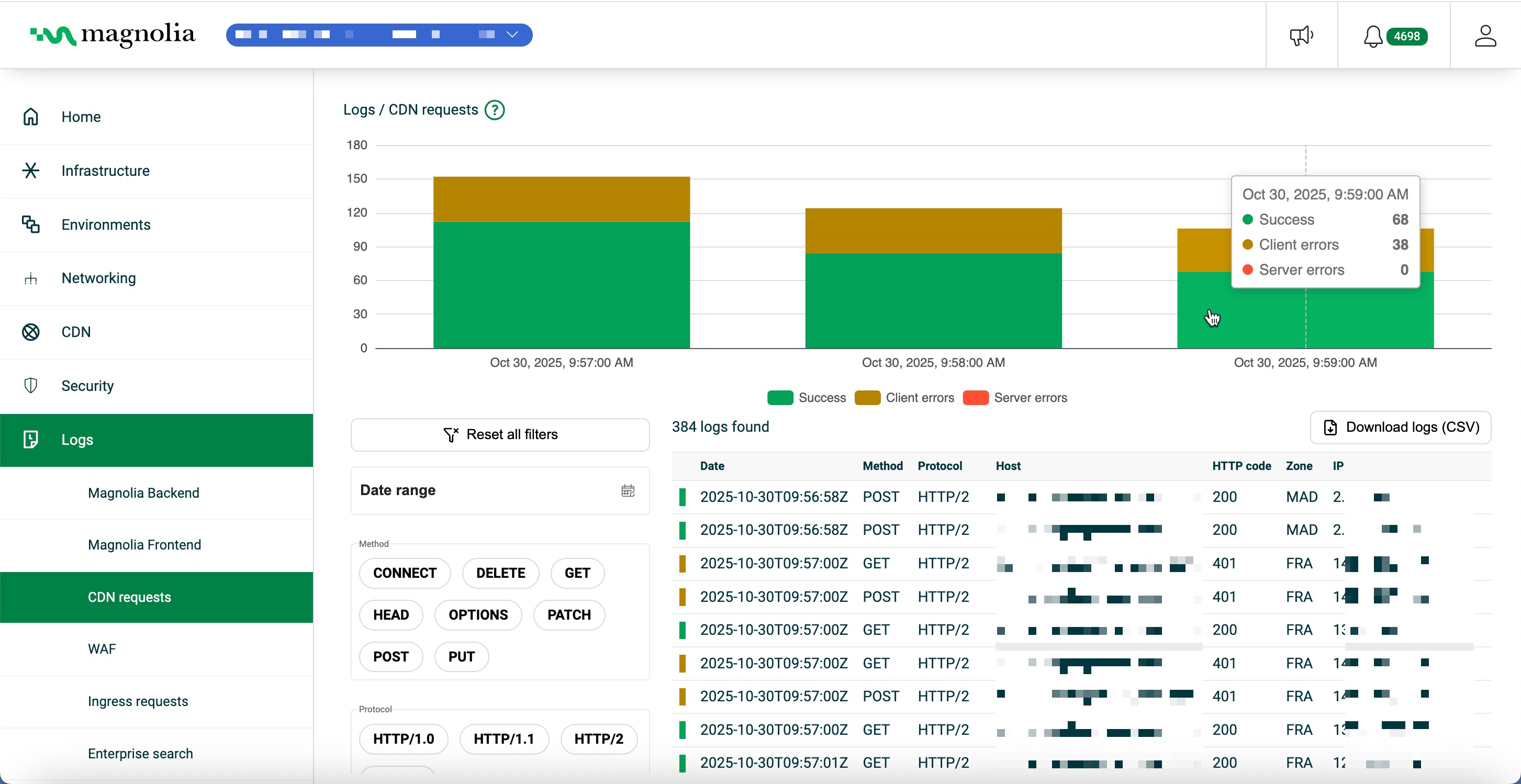
From Logs > CDN requests:
- Select your desired cluster.
- View the chart to see Success (green), Client errors (yellow), and Server errors (red).
- In Filters, set date range, method, protocol, hosts, HTTP codes, zones, IPs, paths, query string, cache status, RTT, size, header size, request time, user agent, internal query, and blocked flags.
Details table
Click Download logs (CSV) to export the rows that match your current filters.
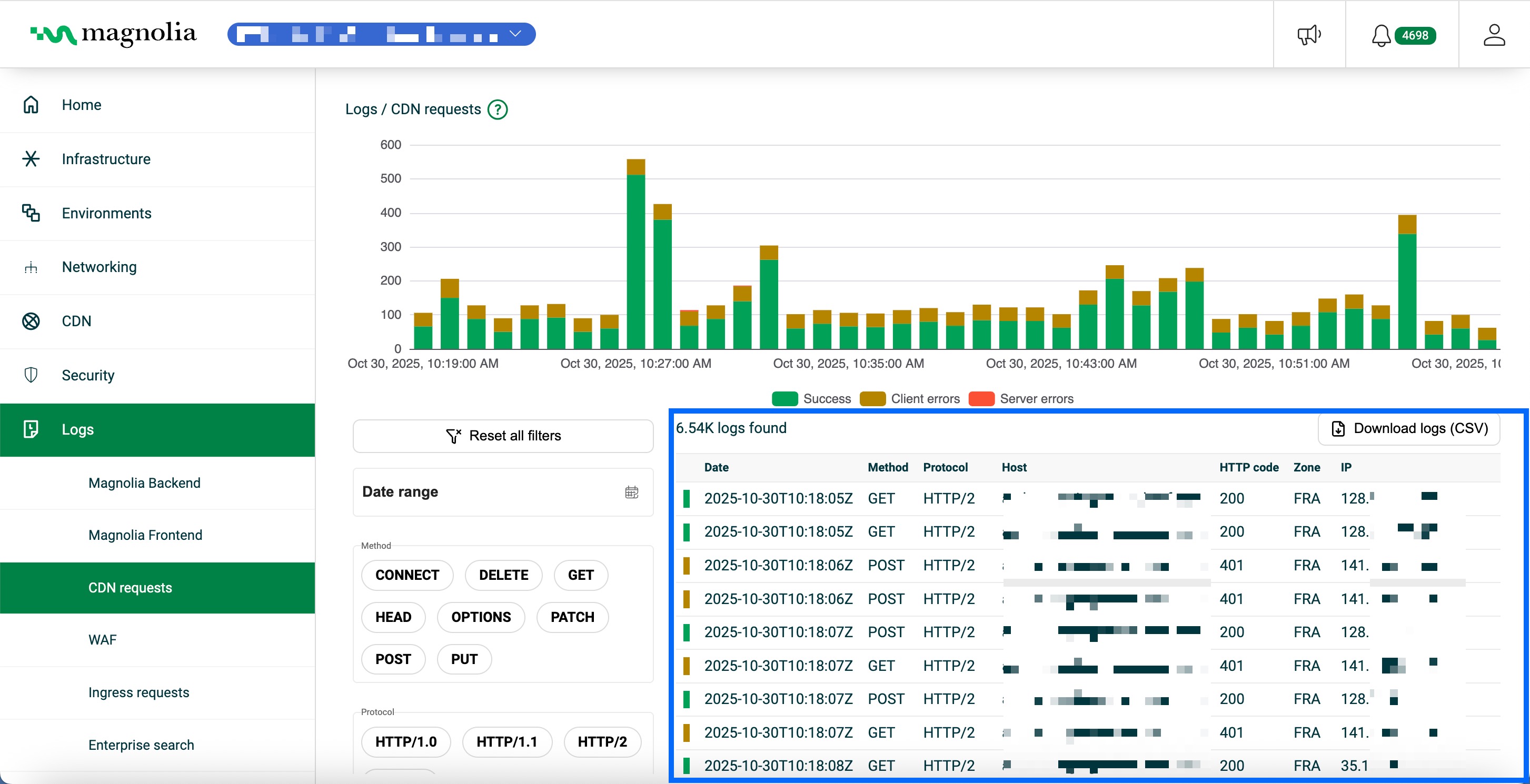
| Column | Description | Example |
|---|---|---|
| Date | Timestamp (ISO 8601, UTC) | 2025-10-30T10:18:05Z |
| Method | HTTP method | GET |
| Protocol | HTTP protocol version | HTTP/2 |
| Host | Hostname that received the request | author.staging.example.com |
| HTTP code | Response status code | 200 |
| Zone | CDN edge location code | FRA |
| IP | Client IP address | 128.246.11.87 |
| Path | URL path | /.magnolia/admincentral/PUSH |
| Cache status | Cache hit/miss/pass | PASS |
| RTT | Round-trip time (ms) | 21 |
| Blocked | Whether the request was blocked | false |
Open a log row to see the full request, including the user agent.
Where a user agent appears, you can open its details in the Cockpit. The result is a decoded view of the client, such as device and browser class, along with related signals that can help you tell typical browsers from automated or unusual traffic.
Zones refer to CDN edge location codes representing geographic regions.
RTT (round-trip time) measures milliseconds for a request to travel from the CDN edge to the origin and back.