

Fastly Waiting Room
Premium feature
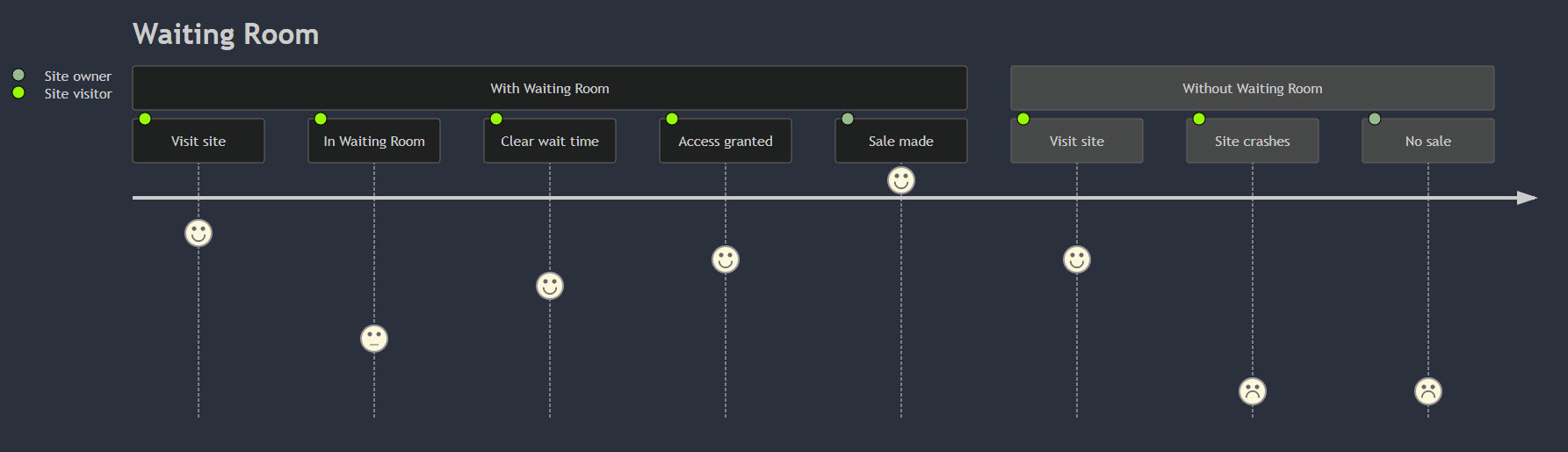
The Fastly Waiting Room helps you manage high traffic volume on your site and prevent site overload. It assigns a delay for new user requests which allows existing users to finish what they are trying to do.
The Fastly Waiting Room:
- Prevents site overload by intelligently handling the influx of new visitors.
- Fairly distributes site traffic so each user has an equal chance of access during high-demand events, promotions, or sales.
- Reduces server load so performance is not hindered.
Select desired cluster
Select your desired cluster from the dropdown menu at the top of the Cockpit.

Get the Fastly Waiting Room
The Fastly Waiting Room is a premium feature. Talk with your DX Cloud representative to discuss enabling it.
You must have the appropriate admin privileges to enable the Fastly Waiting Room. If you open Waiting room in the Cockpit without the appropriate privileges, you see an error page. If your account has the privileges, follow the configuration instructions below.
Configure the Fastly Waiting Room
- In your Cockpit, go to CDN > Waiting room.
View from the Cockpit
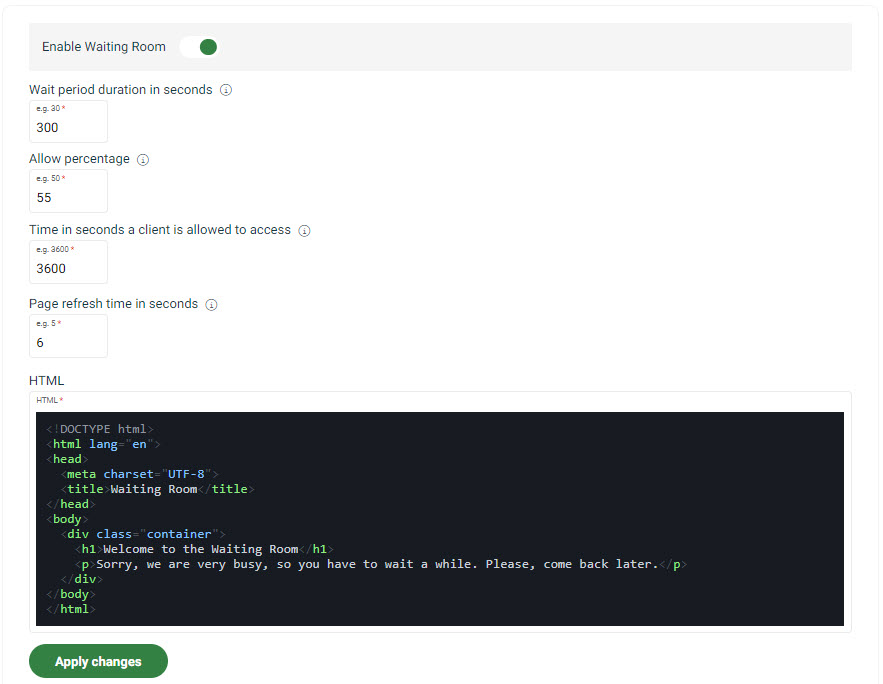
-
Toggle Enable Waiting Room to enable the feature.
-
Input the Wait period duration in seconds.
This is the minimum period of time a visitor must wait before a decision to grant access is made.
-
Input the Allow percentage (a value between
0and100).
-
Input Time in seconds a client is allowed to access.
This is how long the site visitor can stay on the site after access is granted. Default is
3600seconds (60 minutes). -
Input Page refresh time in seconds.
This is how long the Waiting Room waits to refresh and check for cookie status. Default is
5seconds. -
Input the HTML used to render the look and feel of the Waiting Room.