
JCR content
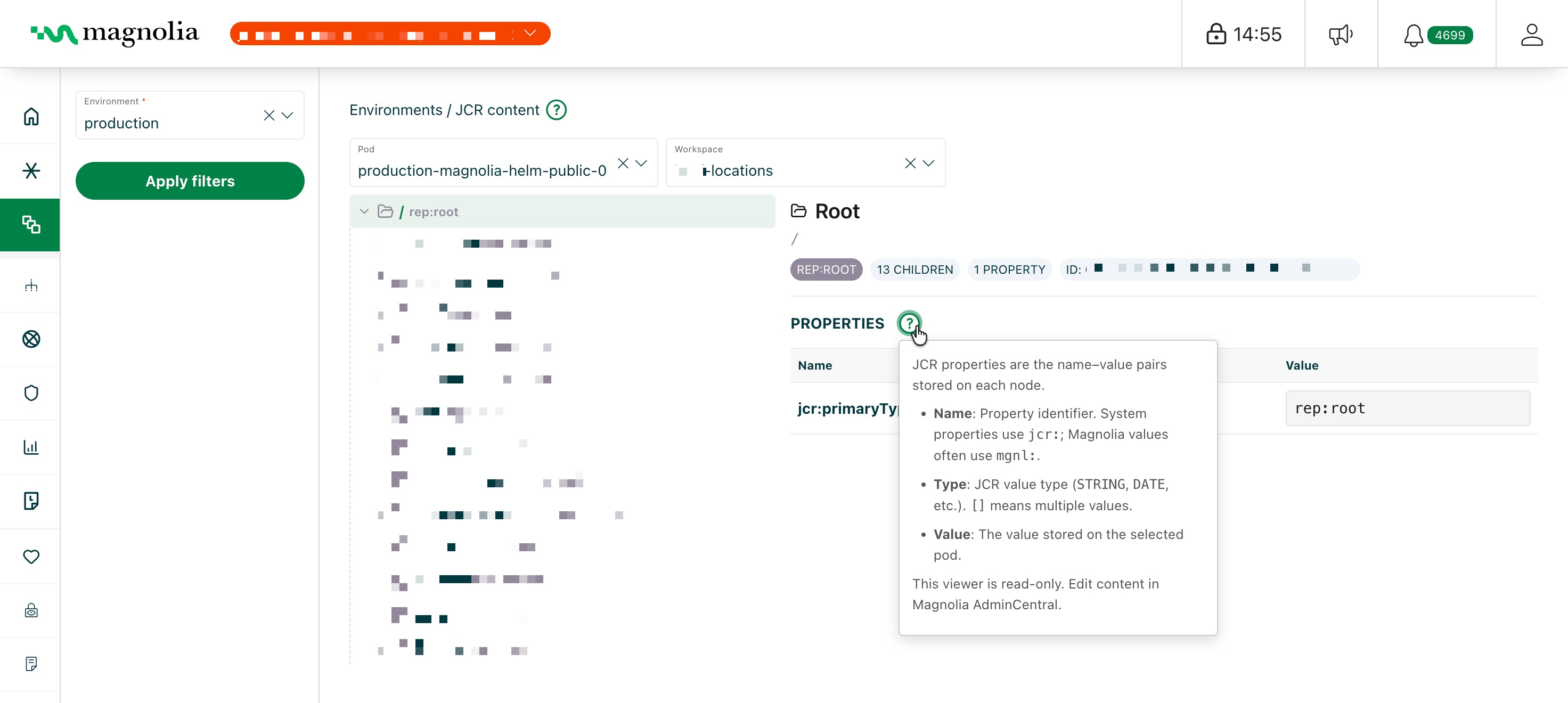
Browse the live JCR repository on your Author or Public Magnolia instances. This viewer is read-only. To create or edit content, use Magnolia AdminCentral.
- Pod: choose an Author or Public instance to query.
- Workspace: select a JCR workspace (for example
website,dam, orconfig). - Tree: expand folders and select a node to view its details.
- Properties: review each property’s name, type, and stored value for the selected node.
Select desired cluster
Select your desired cluster from the dropdown menu at the top of the Cockpit.

View JCR content
-
Go to Environments > JCR content in the Cockpit.
-
Choose your desired environment from the sidebar filters.
-
Select a pod and workspace from the dropdowns.
The content tree loads from that workspace’s repository root.
-
Select a node in the tree to view its details.
-
Review the node’s properties in the details pane.