

Keycloak client event logs
DX Cloud stores Keycloak client event logs. These show actions triggered while your team navigates and uses the Cockpit, from logins through operations such as backups.
Generally, logs are kept for 30 days. Your deployment may use a different retention period.
Select desired cluster
Select your desired cluster from the dropdown menu at the top of the Cockpit.

View client events
From Audit > Keycloak client events:
- Select your desired cluster.
- Use the chart (histogram) to see Success (green), Client errors (yellow), and Server errors (red).
- In Filters, you can set:
- Date range: calendar picker or a preset (for example Last 15 minutes)
- Operation type: one or more types (for example
CLIENT_LOGIN,CLIENT_LOGOUT,REFRESH_TOKEN) - Usernames: for example
service-account-uptime-kuma,admin - Client IDs: for example
uptime-kuma,magnolia-cockpit - IPs: for example
109.71.102.68
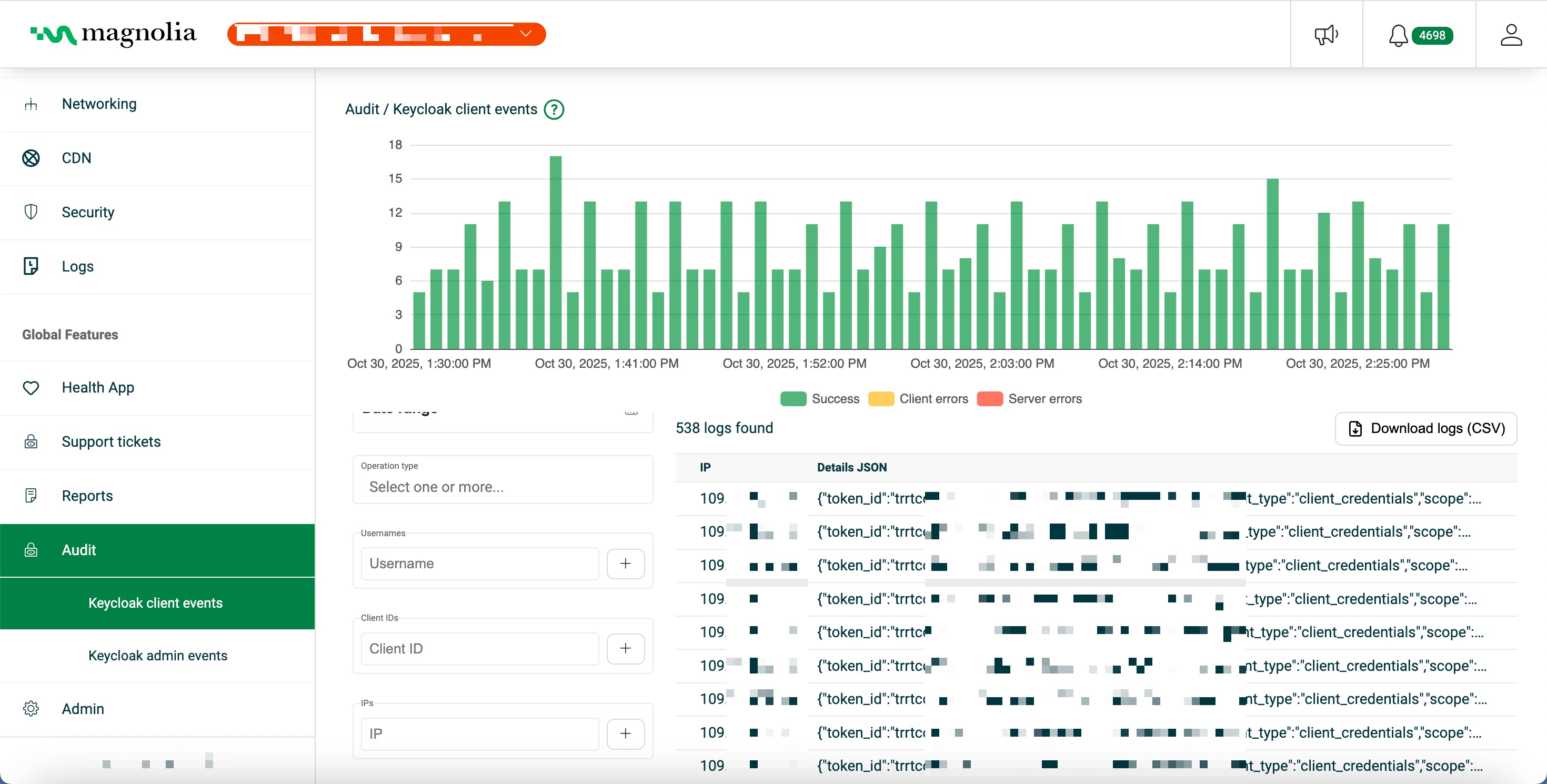
Details table
Click Download logs (CSV) to export the rows that match your current filters.
Click a row to open a detailed view of that log.
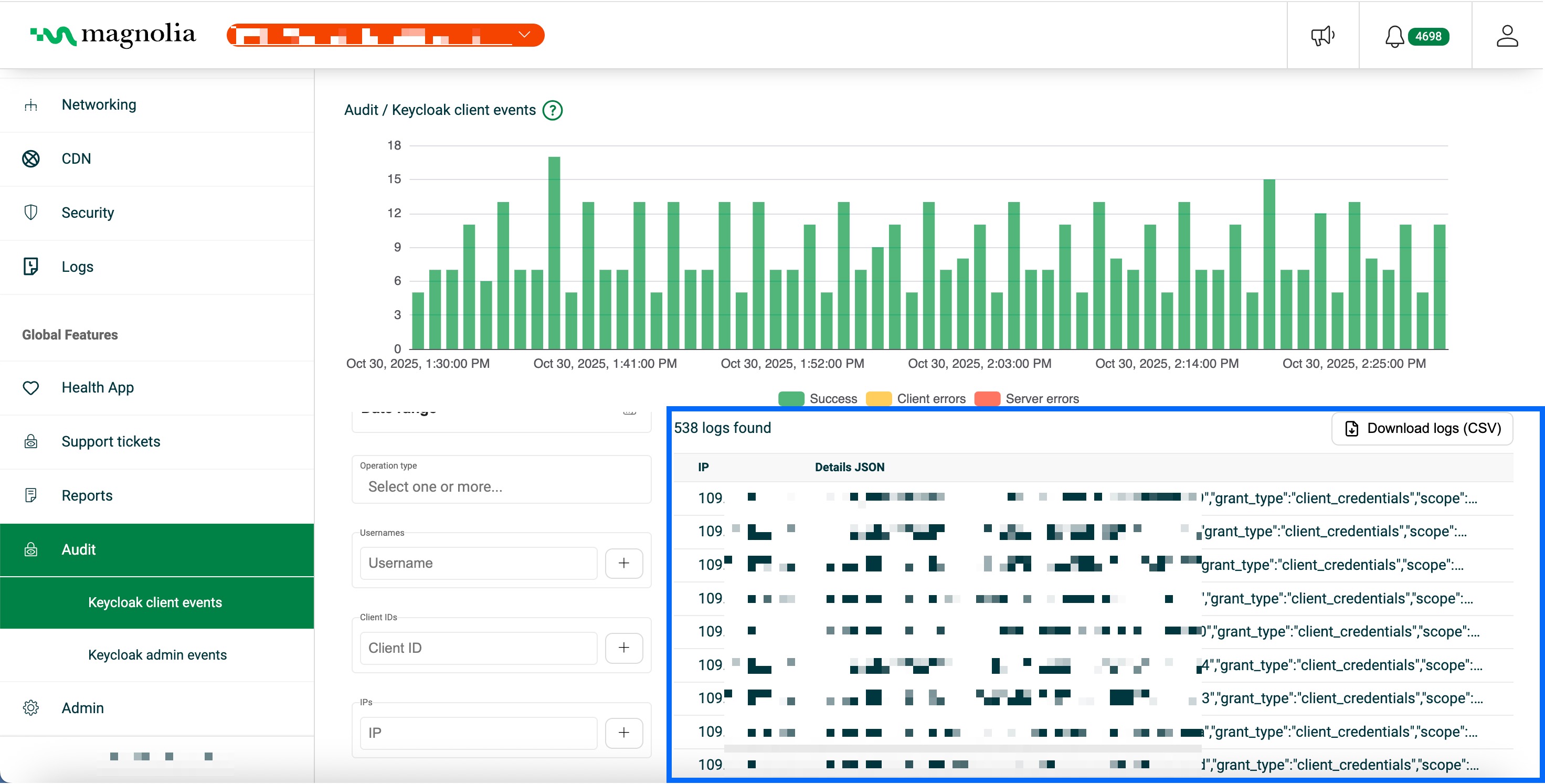
| Column | Description | Example |
|---|---|---|
| Date | Timestamp when the event occurred (ISO 8601, UTC) | 2025-10-30T13:30:48Z |
| Operation type | Keycloak client operation that was performed | CLIENT_LOGIN |
| Username | Username or service account that performed the operation | service-account-uptime-kuma |
| Client ID | Keycloak client identifier for the event | uptime-kuma |
| IP | Source IP address | 109.71.102.68 |
| Details JSON | Extra event metadata (token IDs, grant types, scopes, and so on) | {"token_id":"…","grant_type":"client_credentials",…} |