

Manage your environments
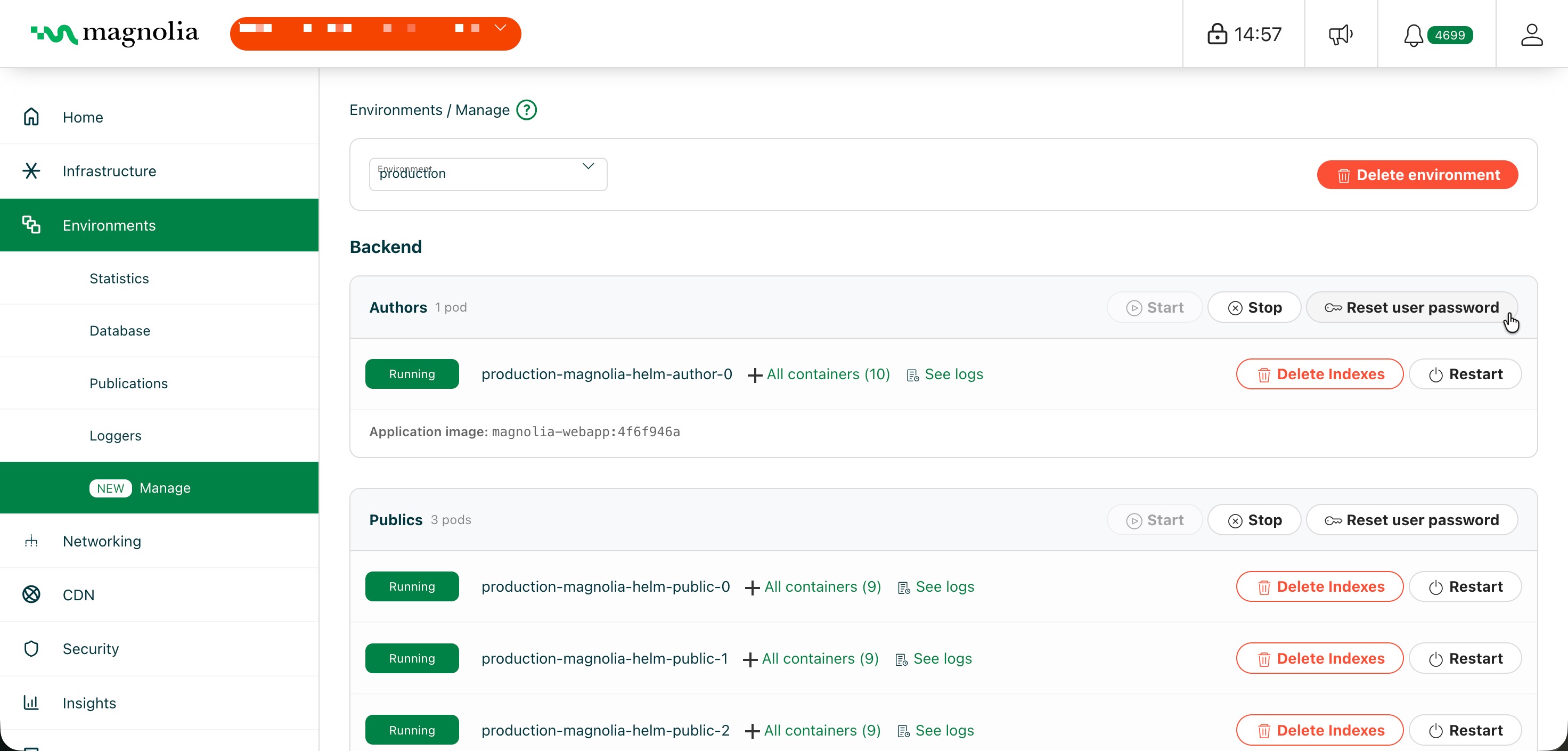
The Environments page displays your Magnolia environments including:
- Backend: Authors and Publics
- Frontend: Authors and Publics (see Frontend deployments)
Each block represents one application and each row an instance. Click All containers on a row to expand details and See logs to view logs for the instance.
If there is an issue with a pod, you see a clear message as to why it is not running.
- Start and Stop: start or stop a Public or Author application.
- Restart: restarts the Magnolia server (Tomcat) inside that instance for the backend and restarts the pod for the frontend.
- Delete indexes: deletes indexes from the instance. Indexes are rebuilt from persistence after the operation. See Delete indexes.
- Reset user password: sets a new password for a user via the dialog. It also enables disabled users.
- Scale: scales the replica count for that application (Frontend only).
Select desired cluster
Select your desired cluster from the dropdown menu at the top of the Cockpit.

See Delete an environment for instructions on how to delete an environment and Delete indexes for instructions on how to delete indexes for an environment.
Instance details
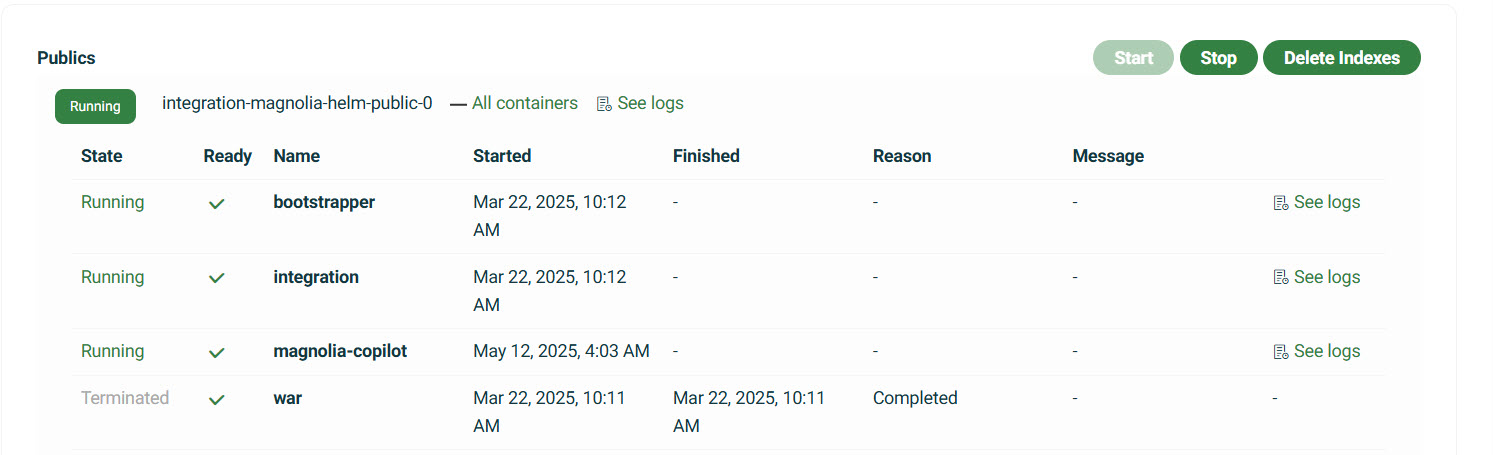
You can view the details of an instance by clicking on the instance name.
| Item | Description |
|---|---|
| All containers | Display a list of all containers associated with the instance. Information includes state, ready status, name, restarts, started and finished times, reason, and message. |
| See logs | Takes you directly to any applicable log information. See Logs for more details. |
Frontend deployments
Frontend workloads are shown in Environments > Manage as well.
However, they are only visible when the Kubernetes deployment labels are set correctly.
If you use a custom k8s/deployment.yaml (or equivalent) in your frontend project, ensure the required labels are present and consistent.
At minimum, configure these labels:
tiercomponentsite
apiVersion: apps/v1
kind: Deployment
metadata:
  name: my-frontend-author
  labels:
    app: <namespace>-magnolia-frontend <1>
    site: example-site <2>
    component: author-instance <3>
    tier: frontend <4>
spec:
  selector:
    matchLabels:
      app: <namespace>-magnolia-frontend <1>
      site: example-site <2>
      component: author-instance <3>
      tier: frontend <4>
  template:
    metadata:
      labels:
        app: <namespace>-magnolia-frontend <1>
        site: example-site <2>
        component: author-instance <3>
        tier: frontend <4>
Set app to <namespace>-magnolia-frontend (for example prod-fcb-magnolia-frontend).
The See logs link from Environments > Manage uses this naming convention together with site (<namespace>-magnolia-frontend:<site>).
If your frontend deployment uses a different app identifier (for example example-frontend-author), the link may be missing or not resolve to the expected frontend log stream.
The site label must be <site-identifier> so the Cockpit places the workload in Frontend (<site-identifier>), for example Frontend (example-site).
If site is not set and multiple frontend deployments exist, pods can appear under unintended frontend app groupings.
The component label must be author-instance or public-instance so the Cockpit places the workload in Authors or Publics.
The tier label must be frontend so the Cockpit classifies the workload as a frontend.
Delete an environment
You can delete an environment directly from the Cockpit.
What gets deleted
When you delete an environment, the following components are permanently removed:
Core infrastructure
- Environment instance: the entire runtime environment
- All deployed applications: including Magnolia CMS instances and any custom applications
- Database: all content, configurations, and user data stored in the environment’s database
- File storage: all uploaded assets, documents, and media files
Network and security configuration
- Ingresses: all traffic routing rules and load balancer configurations
- Secrets: API keys, certificates, passwords, and other sensitive configuration data
- SSL/TLS certificates: custom certificates and Let’s Encrypt certificates
- CDN configuration: content delivery network settings and cached content
Instructions
- Go to Environments > Manage.
- Go to the environment that you want to delete.
- Click Delete environment.
- Follow any on-screen instructions for confirming the deletion.
Delete indexes
You may want to completely delete the indexes for an environment. This can be done directly through the Cockpit.
To delete the index folders:
- Go to Environments > Manage.
- Click Delete indexes for the desired environment.