

Subscription
The DX Cloud Subscription section contains information about your subscription and how to manage it. This includes platform update tiers, notification channels, notification configuration rules, and notification whitelists.
For a full guide on setting up notifications, see Set up notifications.
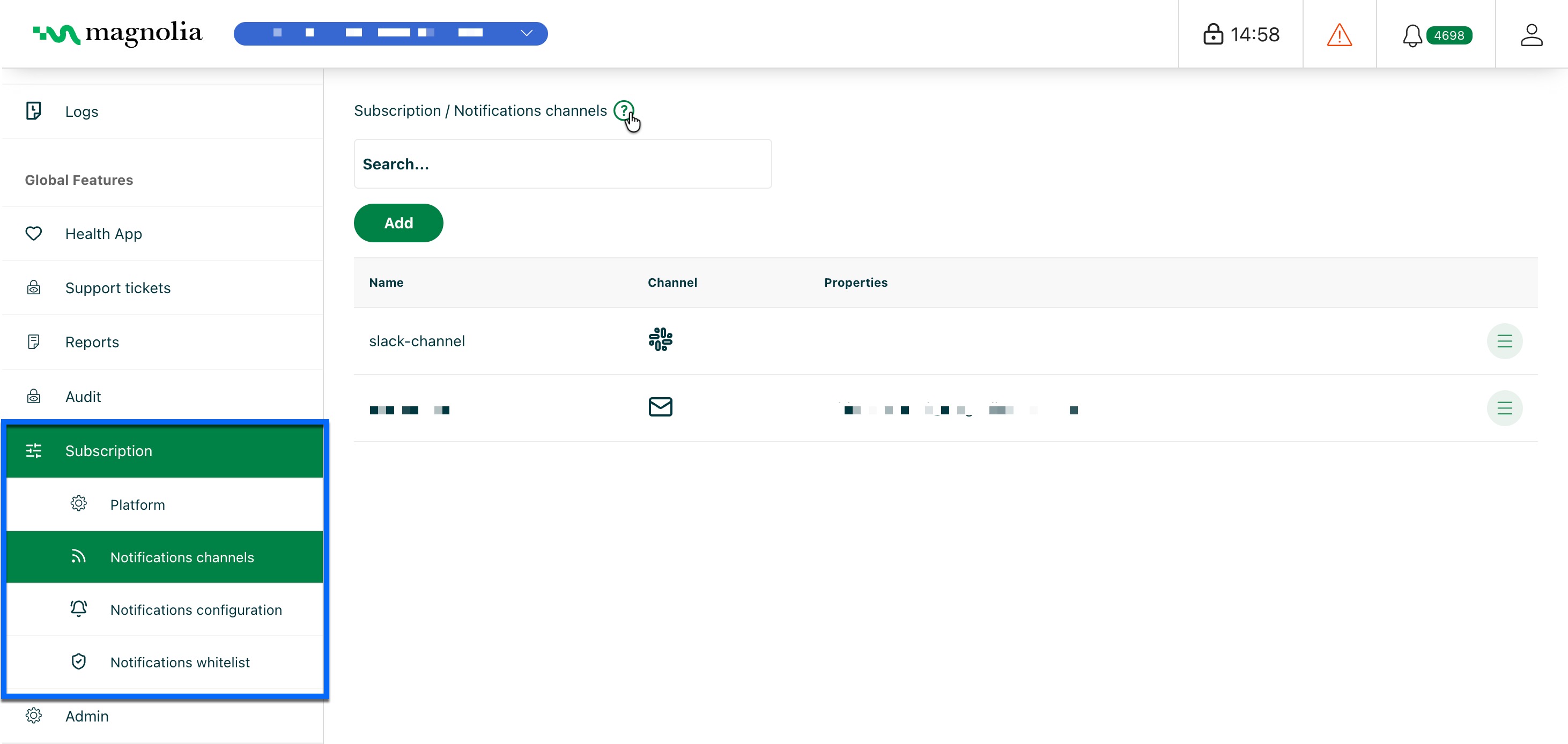
In this section
Set up notifications
This section provides an end-to-end guide for setting up notifications for your subscription in the Cockpit. The example used here is Microsoft Teams. However, the process is similar for other notification channels.
Connect with Microsoft Teams from the Cockpit
-
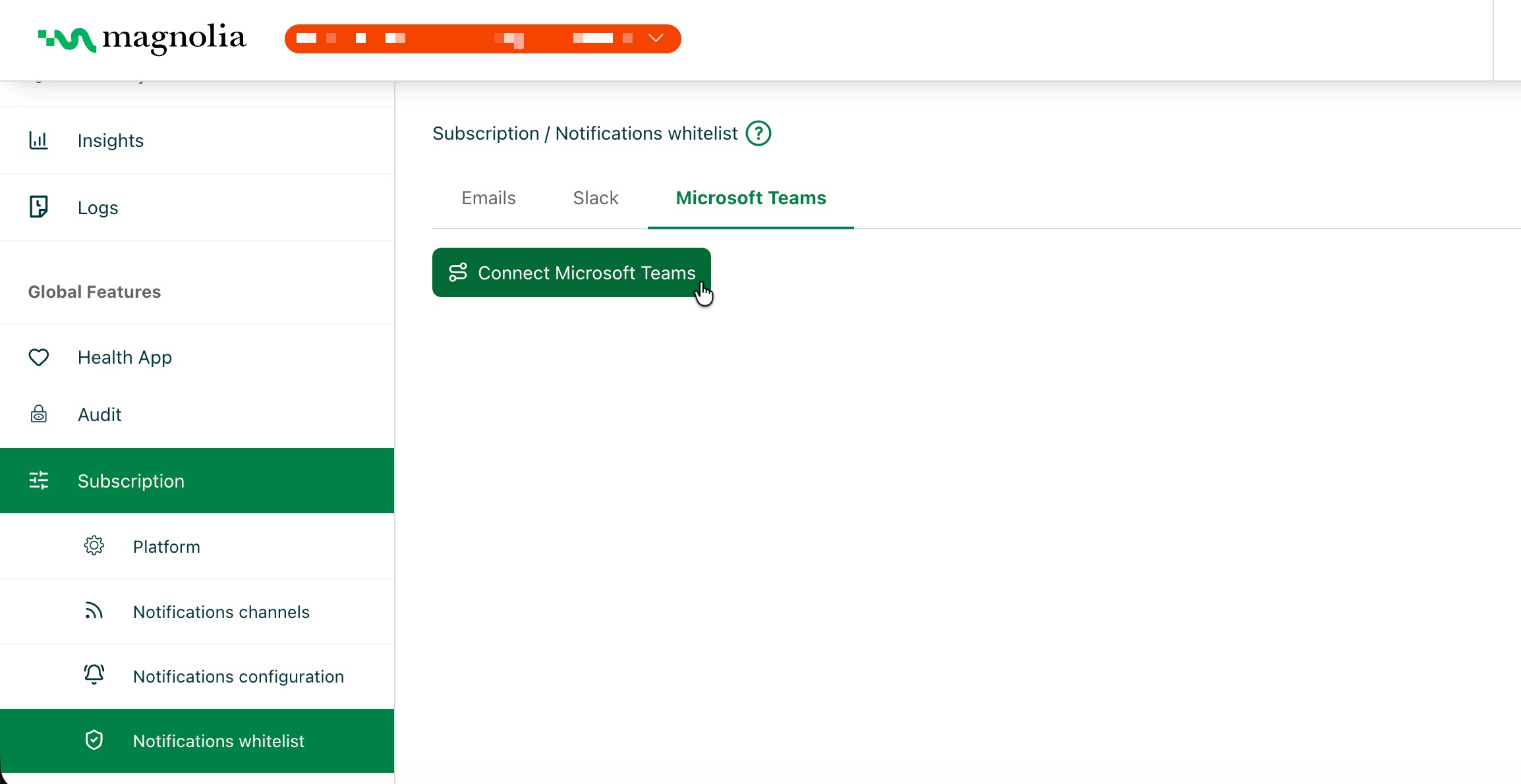
In the Cockpit, go to Subscription > Notifications whitelist.
-
Go to the Microsoft Teams tab.
-
Click Connect Microsoft Teams.
This opens a new tab to the Microsoft Teams OAuth flow in your browser.
A Microsoft Teams administrator must complete this OAuth flow. If you are not an administrator, ask your Teams administrator to complete the connection for your organization.
If the administrator does not have a Cockpit account, click Connect Microsoft Teams, copy the URL from the browser tab that opens, and send it to them. They can open that link, sign in with their Microsoft account, and complete the authorization without signing into the Cockpit.
Install the Magnolia app in Microsoft Teams
Before you create a notification channel in the Cockpit, install the Magnolia app in Microsoft Teams.
- In Microsoft Teams, go to Apps.
- Install the Magnolia Cloud Cockpit Alerts app.
- Choose a place to use the app by selecting a team in Microsoft Teams.
At this point, you are installing the app on the team. You choose which channel in that team receives notifications in Create the channel in the Cockpit.
Create the channel in the Cockpit
After the app is installed in Teams, map it to a notification channel in the Cockpit.
-
In the Cockpit, go to Subscription > Notifications channels.
-
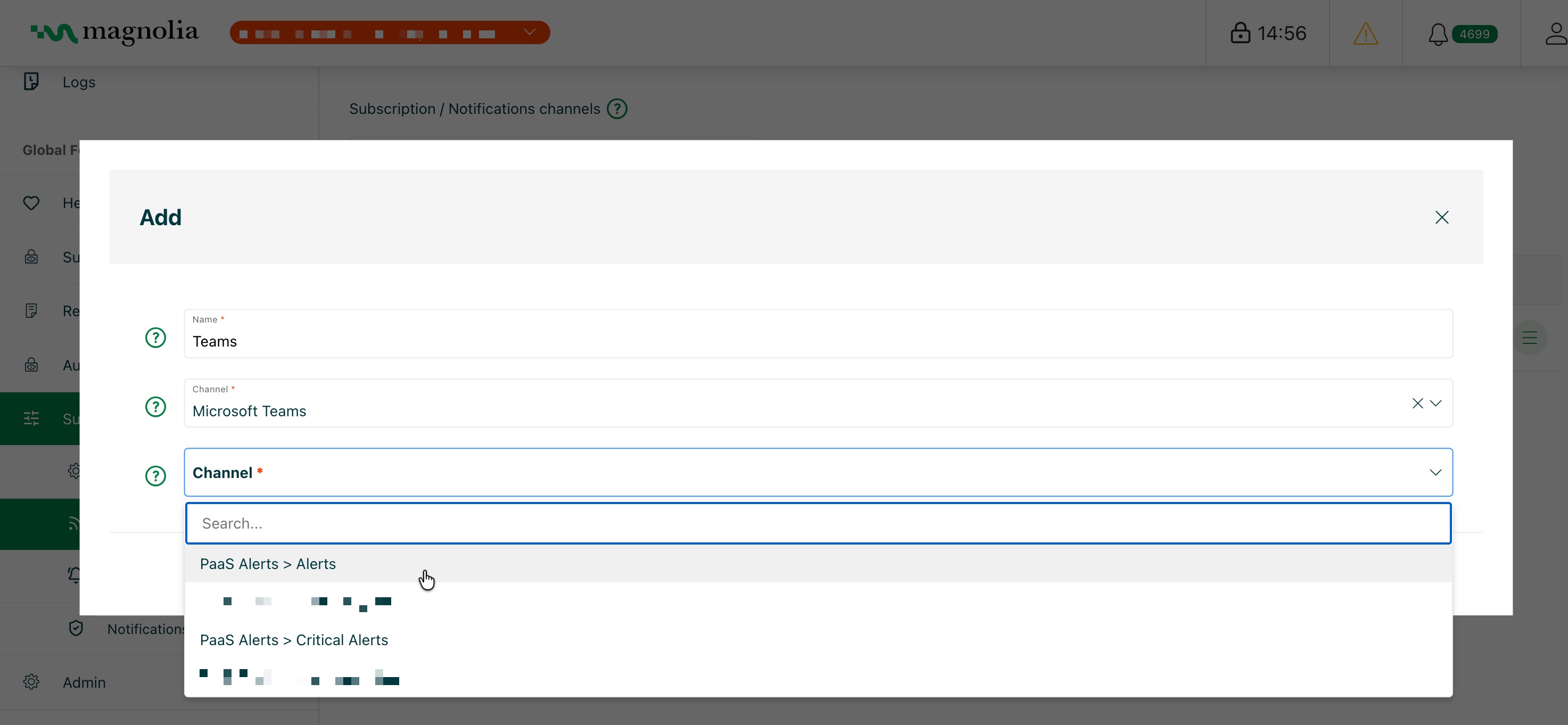
Click Add.
-
Give your channel a name.
-
Select Microsoft Teams in the Channel dropdown.
-
Select the channel(s) to send the notification to.
Only Teams destinations where the app is already installed are listed, shown as Team name > Channel name.
-
Click Add.
Create the notification in the Cockpit
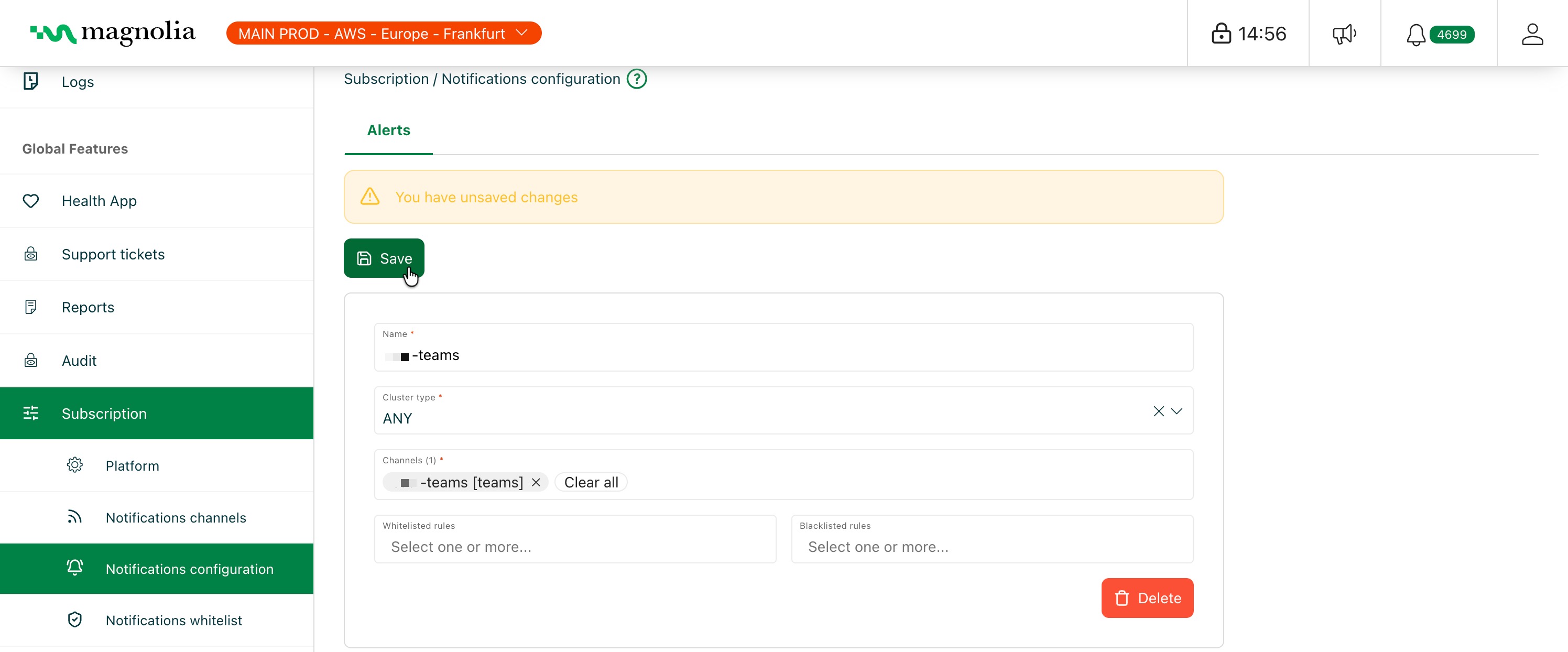
- In the Cockpit, go to Subscription > Notifications configuration.
- Click Add alert notification rule.
- Give your notification a name.
- Select the cluster type.
- Select the channels to send the notification to.
- Add any whitelisted or blacklisted rules.
- Click Save.
You are now ready to receive notifications for your subscription in Microsoft Teams.