

Download reports
The Download reports page provides PDF summaries of your DX Cloud subscription performance and resource usage over specific time periods. These reports compile subscription dashboard metrics for compliance, analysis, planning, and stakeholder reporting.
- Weekly reports: 7-day summaries of all subscription metrics
- Monthly reports: 30-day comprehensive performance and usage analysis
- Custom reports: on-demand PDFs for a date range you choose
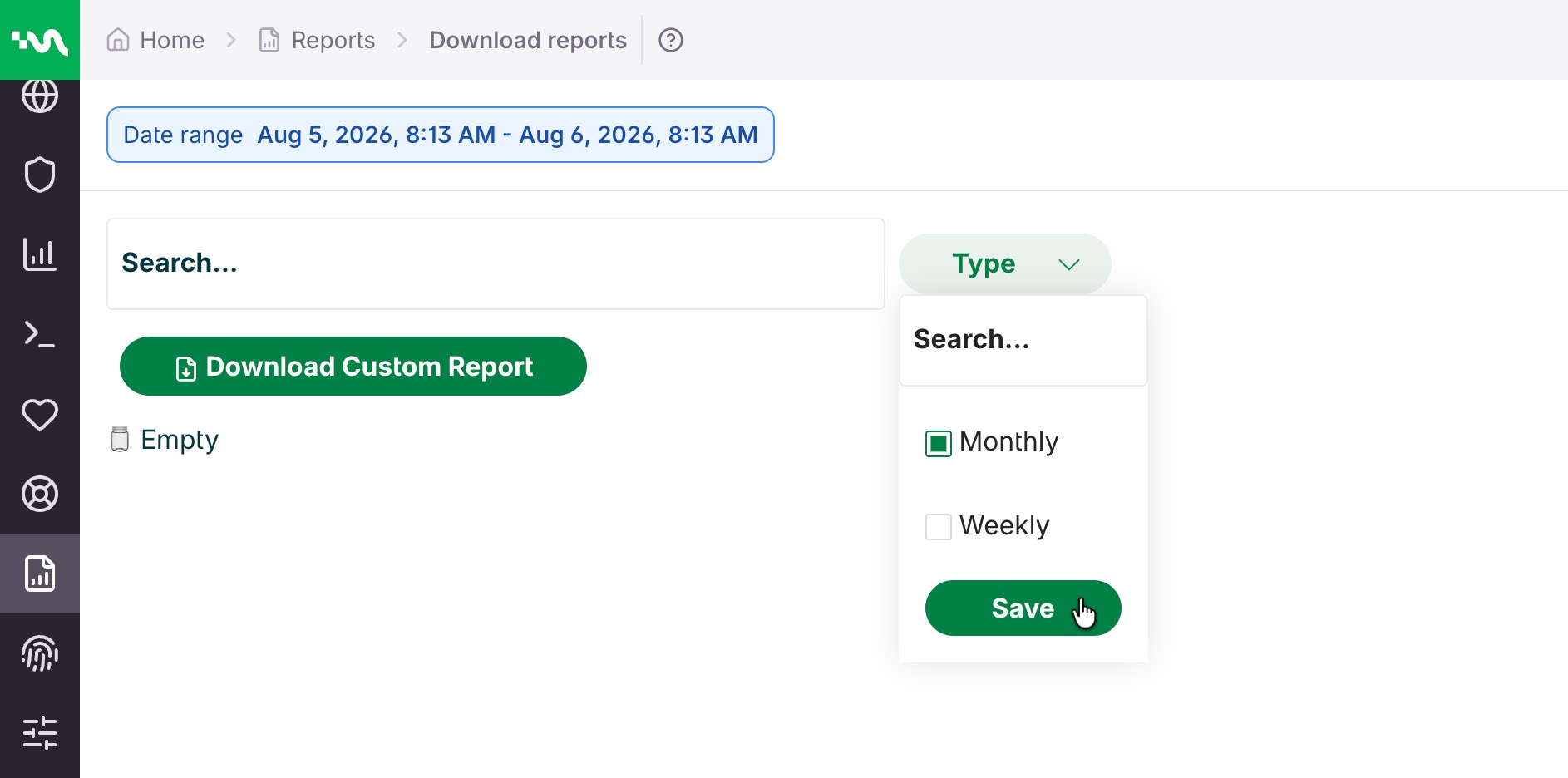
Report list
The table lists generated reports with the following columns:
- Reference: Unique identifier for each generated report. Use this ID when contacting support about a particular report.
- Type: Monthly (30-day analysis of all subscription metrics) or Weekly (7-day summary of performance and usage data)
- From: Start date of the reporting period.
- To: End date of the reporting period.
- Created: Date when the report was generated and became available for download.
Filter by Weekly or Monthly, or use search to find a report by reference ID or date range. Open the row actions menu and choose Download to save the PDF.
Download a custom report
- In the Cockpit, go to Reports > Download reports.
- Click Download Custom Report.
- Select the Date range to include.
- Click Download Custom Report.
- Download the PDF.
Custom reports contain the same subscription metrics and analysis as scheduled weekly and monthly reports for the period you select.
What the PDF contains
PDF reports typically include:
-
Contractual key performance indicators: Metrics agreed upon in the DX Cloud Service Agreement, such as the metric name, commitment, measurement interval, and measured value for the period. These vary from customer to customer.
-
Platform usage: Usage compared with your subscription package, including items such as cloud provider, active clusters, total traffic, storage allocation, supported domains, and resource allocation for production and non-production environments.