

SSO clients
The Magnolia SSO module enables secure authentication by integrating with your Identity Provider (IdP). This lets your users access a Magnolia instance using their existing credentials, streamlining workflows and enhancing security.
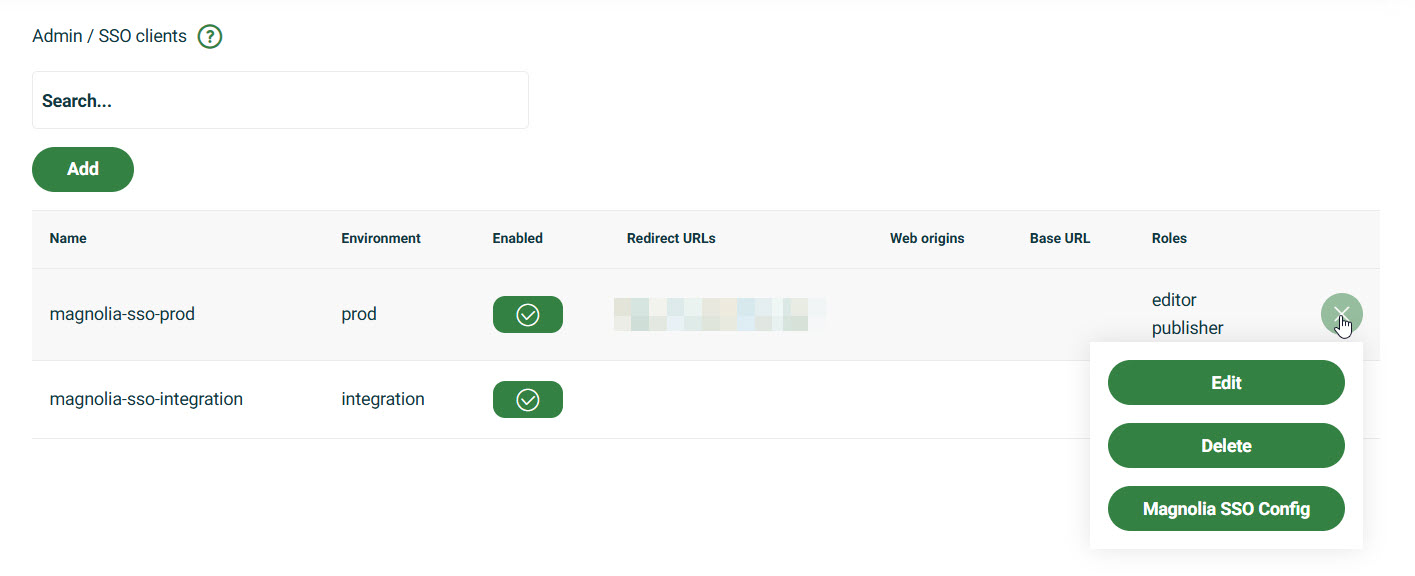
For DX Cloud deployments, configuring an SSO client is essential to connect your IdP to Magnolia. The SSO module relies on OpenID Connect (OIDC) for authentication.
If your IdP uses SAML instead of OIDC, we bridge the gap by routing authentication through Keycloak. Proper client configuration ensures smooth and secure access across your environments.
You must only create one SSO client per environment (for example production or integration).
Add configuration
-
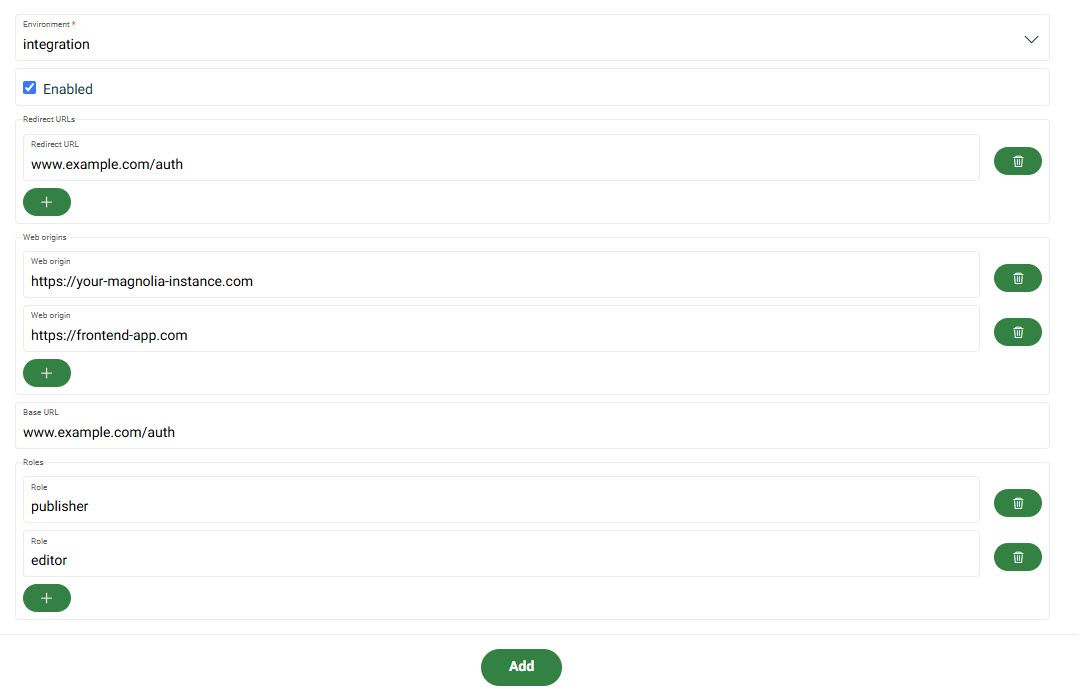
Go to Admin > SSO clients.
-
Click Add.
-
Choose your desired Environment in the dropdown menu. You must only create one SSO client per environment (for example production or integration).
-
Click Enabled.
-
If desired, add redirect URLs. These are the
callbackURLvalues for the Magnolia SSO module configuration. -
Add the allowed CORS origins.
CORS restrictions
Web origins must be listed in the SSO client configuration to allow cross-origin requests.
If your Magnolia instance is hosted at
https://example-magnolia.comand you have a front-end app athttps://frontend-app.com, you might configure the following web origins in the SSO client (for example in Keycloak):https://example-magnolia.comhttps://frontend-app.com
This ensures both domains can participate in the SSO authentication flow without being blocked by CORS restrictions.
-
Add the Base URL. The default URL to use when the auth server needs to redirect or link back to the client.
-
Add any Magnolia roles you want mapped in the SSO module.
-
Click Add.
Magnolia SSO config
Once you have configured your SSO client:
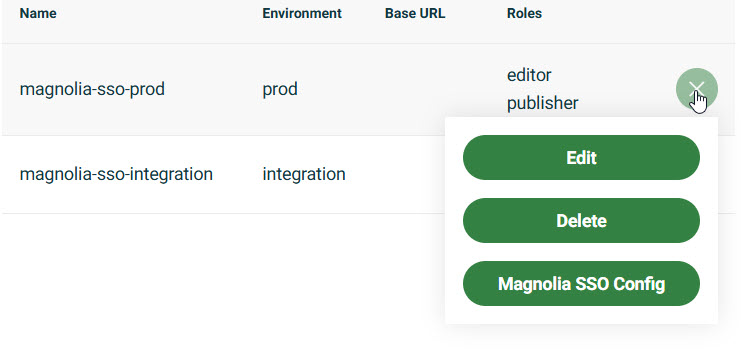
- Go to your SSO client configuration in the SSO Client Config table.
- Click the three-bar menu.
- Click Magnolia SSO Config to get your full Magnolia SSO module
.yamlconfiguration. You can copy and paste the configuration directly into your SSO module. For detailed information on SSO module configuration, see Magnolia SSO module: Configuration.
Edit or delete a configuration
From the SSO clients table, open the row menu to Edit or Delete an existing configuration.