
Manage users
You can manage existing users directly from the Cockpit. This includes:
Adding a user
You can add a new user to your DX Cloud subscription directly from the Cockpit.
-
Go to Admin > Users.
-
Click Add.
-
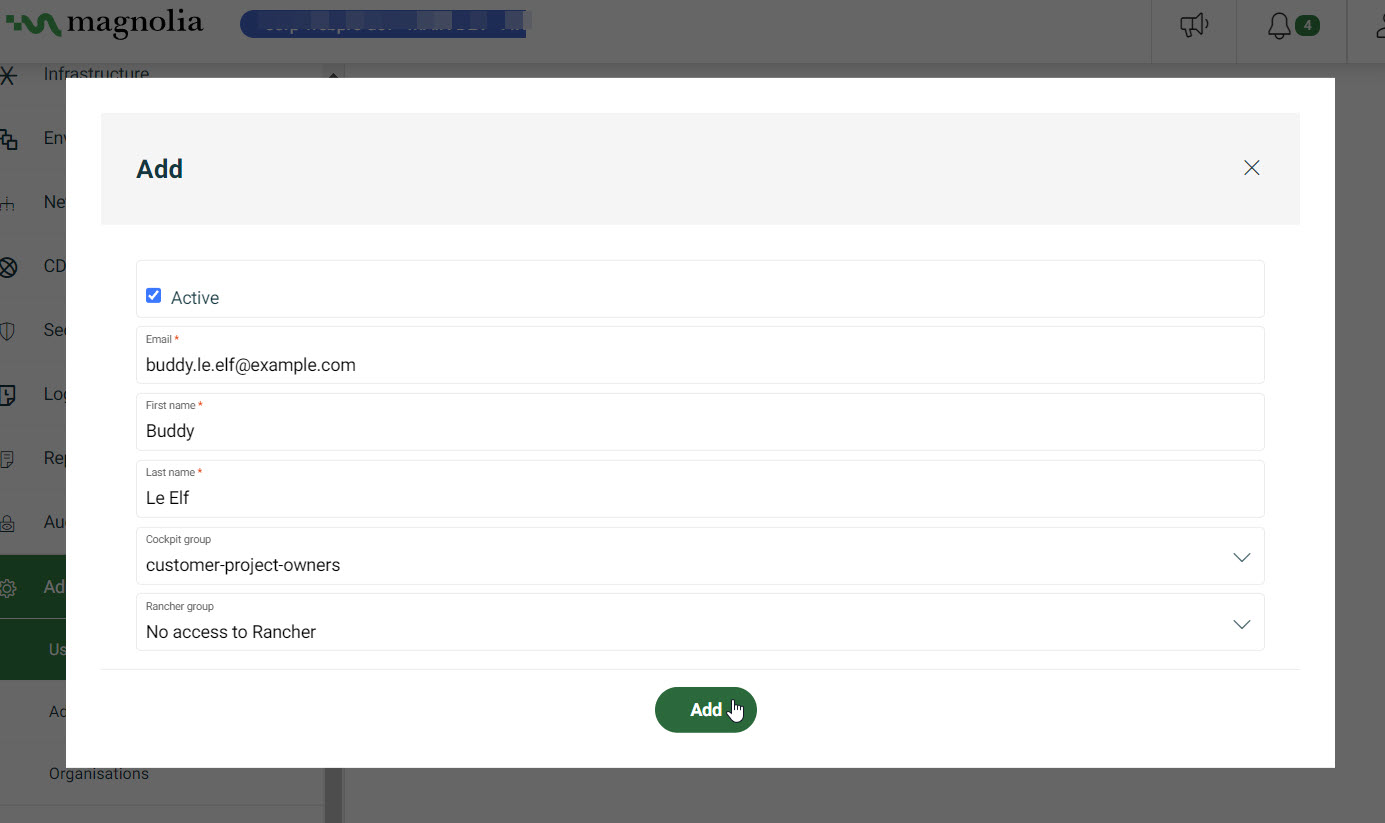
If desired, click Active to immediately activate the user upon creation.
-
Input the user email.
-
Give the user a first name.
-
Give the user a last name.
-
Add the user to the appropriate groups.
Groups list
Click the group for details on what roles are included in each group.
Cockpit groups:
Rancher groups:
- customers
- no access
-
Click Add.
User status
The user list allows you to quickly understand the status of the user.
- Active: active users are represented by a green badge.
- Inactive: inactive users are represented by a gold badge.
- Not verified: unverified users are represented by a red badge.
Editing a user
- Go to Admin > Users.
- Scroll to the desired user.
- Click Edit.
- In the dialog window, edit the user as needed.
- Click Edit.
Deleting users
- Go to Admin > Users.
- Scroll to the desired user.
- Click Delete.
- In the dialog window, click Delete to confirm that you definitely want to delete the user.
Reset user credentials
You can reset a user’s password or One-time Password (OTP) directly from the Cockpit under the Admin section.
- Go to Admin > Users.
- Scroll to the desired user.
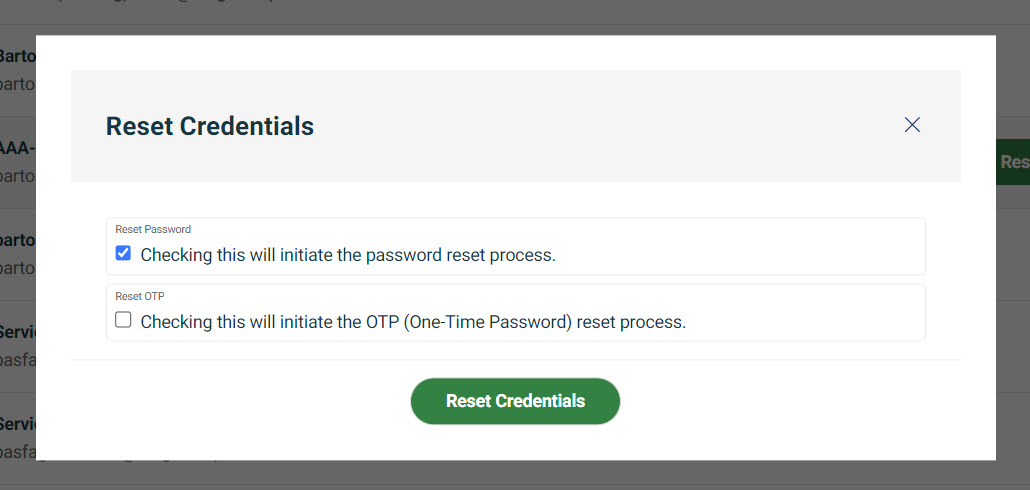
- Click Reset credentials.
- In the dialog, choose one or both: