
Cache
You can add cache rules from your DX Cloud Cockpit. Caching reduces requests to Magnolia which helps reduce heavy processing loads and improves performance.
The options in the Cache section are not available to satellite clusters.
Serving stale content on origin failure is off by default. Contact support to enable it.
Subsections:
Select desired cluster
Select your desired cluster from the dropdown menu at the top of the Cockpit.

Add Browser cache rule
browserCachePolicy is defined in Magnolia cache configuration.
See Cache in DX Cloud Operations for background.
Rules:
- The rules apply from top to bottom.
- The first rule matching the request defines which
Cache-Controlheader is applied to the response.
View from the Cockpit
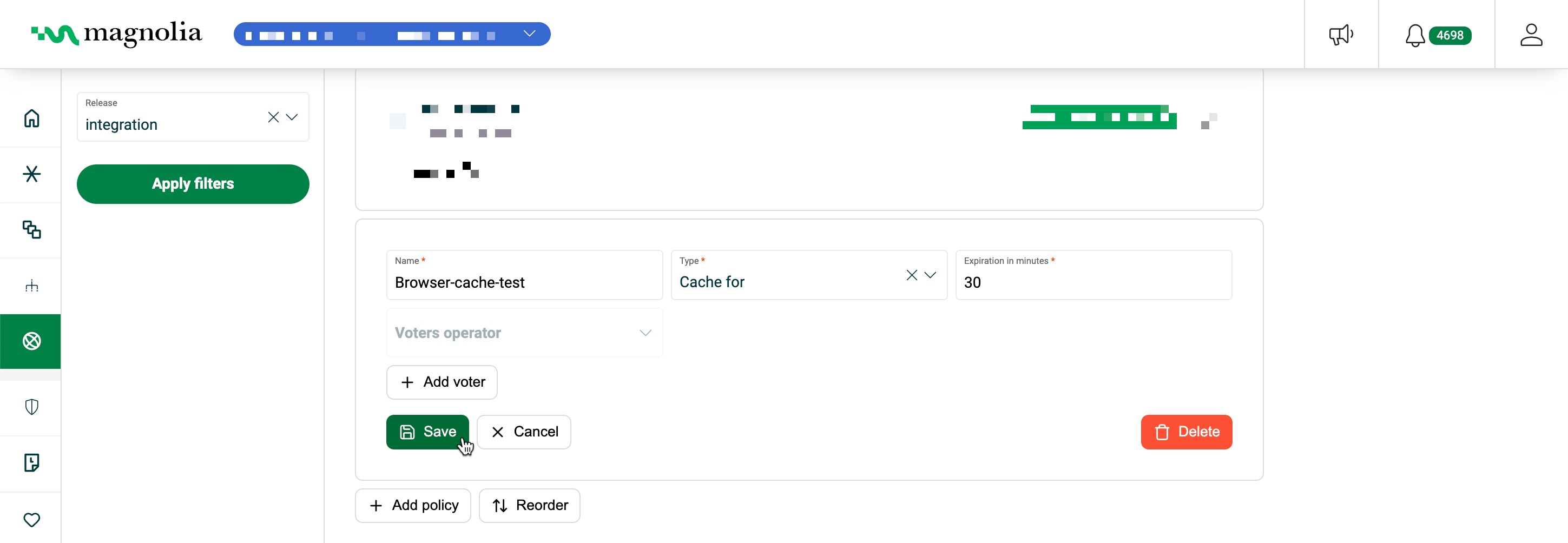
To add a Browser cache rule:
-
Go to your Cockpit.
-
Go to CDN > Cache.
-
Choose the Browser cache tab.
-
Click Add policy.
The new policy appears at the top of the policy list where you can edit it.
-
Give the policy a Name.
-
Choose the Type:
Type Description Never cache Content is never cached. Cache for Set how long content is cached (in minutes). -
Click Add voter if you want to add any voters.
-
Choose the condition you want and click Add.
-
Click Save.
-
To put your rules into production, Publish your new rule.
Your updates are not synced with Magnolia until you publish the policies. Published policies show the Synced with Magnolia label.
Add CDN cache rule
CDN caching controls the Surrogate-Control header.
When the CDN sees this header, it uses it instead of Cache-Control, letting you give the browser and CDN different cache instructions.
For example, you might set Cache-Control: no-cache on images so browsers never cache them, while setting Surrogate-Control: max-age=31536000 so the CDN caches them for a year.
If you need to update the images later, you only invalidate the CDN cache and all browsers immediately get the new version.
CDN caching also helps serve cached content when Magnolia is down or experiencing issues.
Rules:
- The rules apply from top to bottom.
- The first rule matching the request defines which
Surrogate-Controlheader is applied to the response. - The
Surrogate-Controlheader takes precedence over theCache-Controlheader. Surrogate-Controlheaders are removed before a response is sent to an end user.- In the absence of the
Surrogate-Controlheader, the CDN uses theCache-Controlheader.
View from the Cockpit
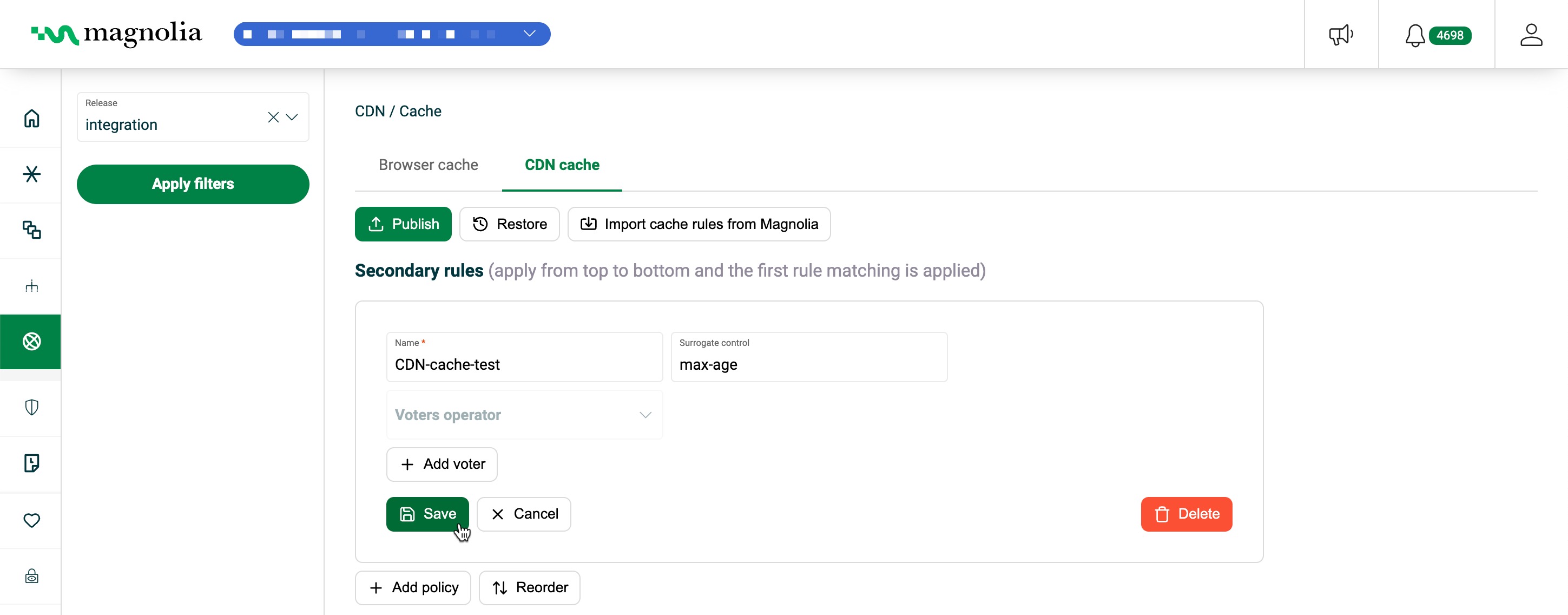
To add a CDN cache rule:
-
Go to your Cockpit.
-
Go to CDN > Cache.
-
Choose the CDN cache tab.
-
Click Add policy.
The new policy appears at the top of the policy list where you can edit it.
-
Give the policy a Name.
-
Add a directive to the Surrogate Control field.
What values can be added?
max-age: defines how long the response entity can be considered fresh in seconds before the cached entity is stale.stale-while-revalidate: defines how long in seconds the cache can reuse a stale response while it revalidates it to the cache.stale-if-error: when an error is encountered, a cached stale response can satisfy the request regardless of other freshness information. Unlikestale-while-revalidate,stale-if-errordoes not allow asynchronous revalidation.
Example:
max-age=86400, stale-while-revalidate=60 -
Click Add voter if you want to add any voters.
-
Choose the condition you want and click Add.
-
Click Save.
-
To put your rules into production, Publish your new rule.
Your updates are not synced with Magnolia until you publish the policies. Published policies show the Synced with Magnolia label.
Restore cache versions
You can restore a previous version of a cache policy.
-
Go to CDN > Cache.
-
Choose your desired cache tab.
-
Click Restore.
A dropdown list of versions appears.
-
Choose the version you want to restore.
-
Click Restore.
Import cache policies
You can import cache policies from Magnolia.
-
Go to CDN > Cache.
-
Choose your desired cache tab.
-
Click Import cache rules from Magnolia.
The cache policies are imported and added to the list. You can edit the policies after the import.
Import conflicts
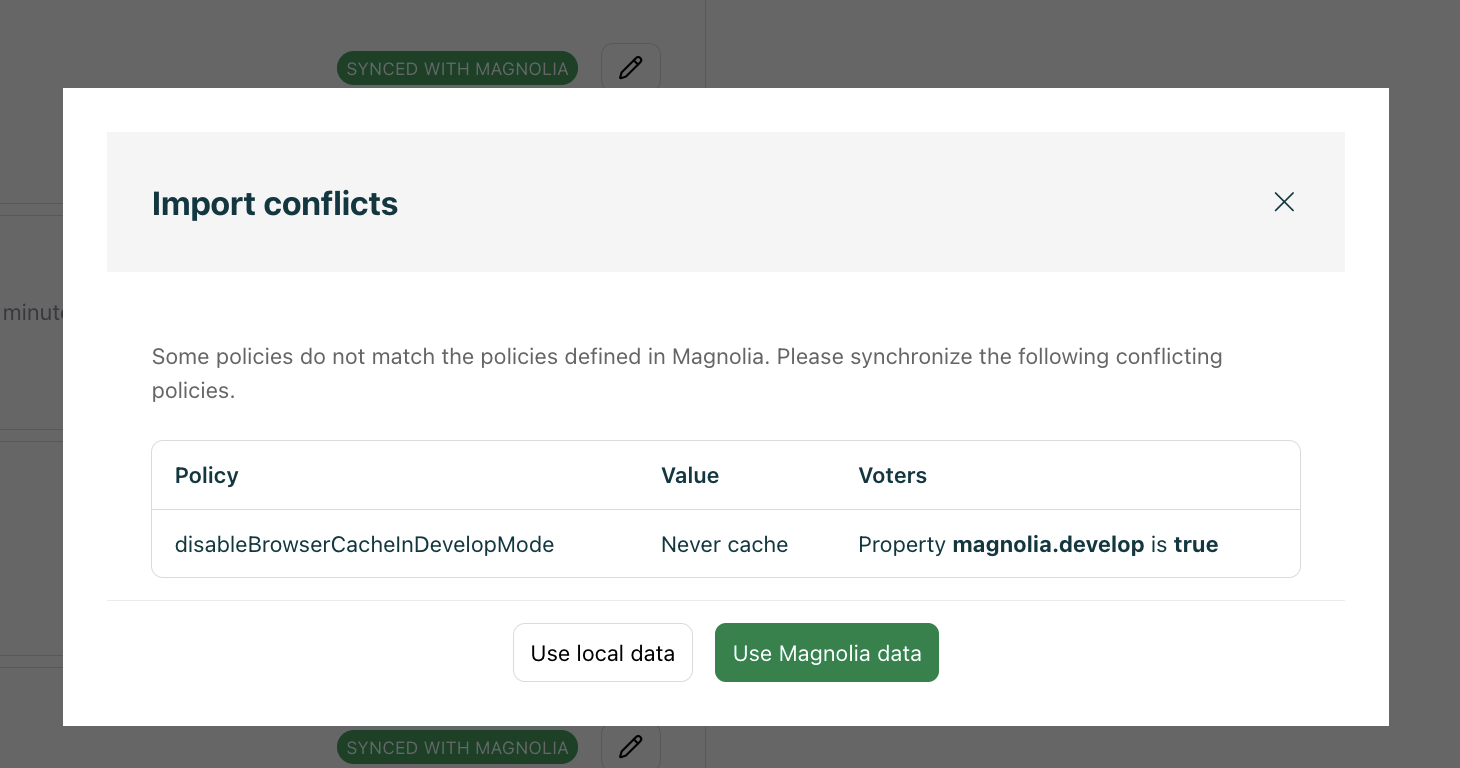
If you attempt to import cache policies that do not match the policies defined in Magnolia, you see a conflict error listing the conflicting policies including the name, value, and voters.
You can choose to use the local data or the Magnolia data directly from the Cockpit.